

Integrate and customize CMS modules
In this tutorial, you will customize the blog module of the bluetronix CMS: from activating and integrating the blog list to creating your own module files, configuration values, and language files.
Prerequisites and goals of the tutorial
For this tutorial, you need a developer access to the bluetronix CMS. You should already know how the developer folders work and why custom files in the system folders are marked with _own.
We will use the existing News - Blog module as an example. You activate the module, integrate its list view into a CMS page, and then specifically customize your own module file and the configuration. The original files remain unchanged.
1. Activate the blog module
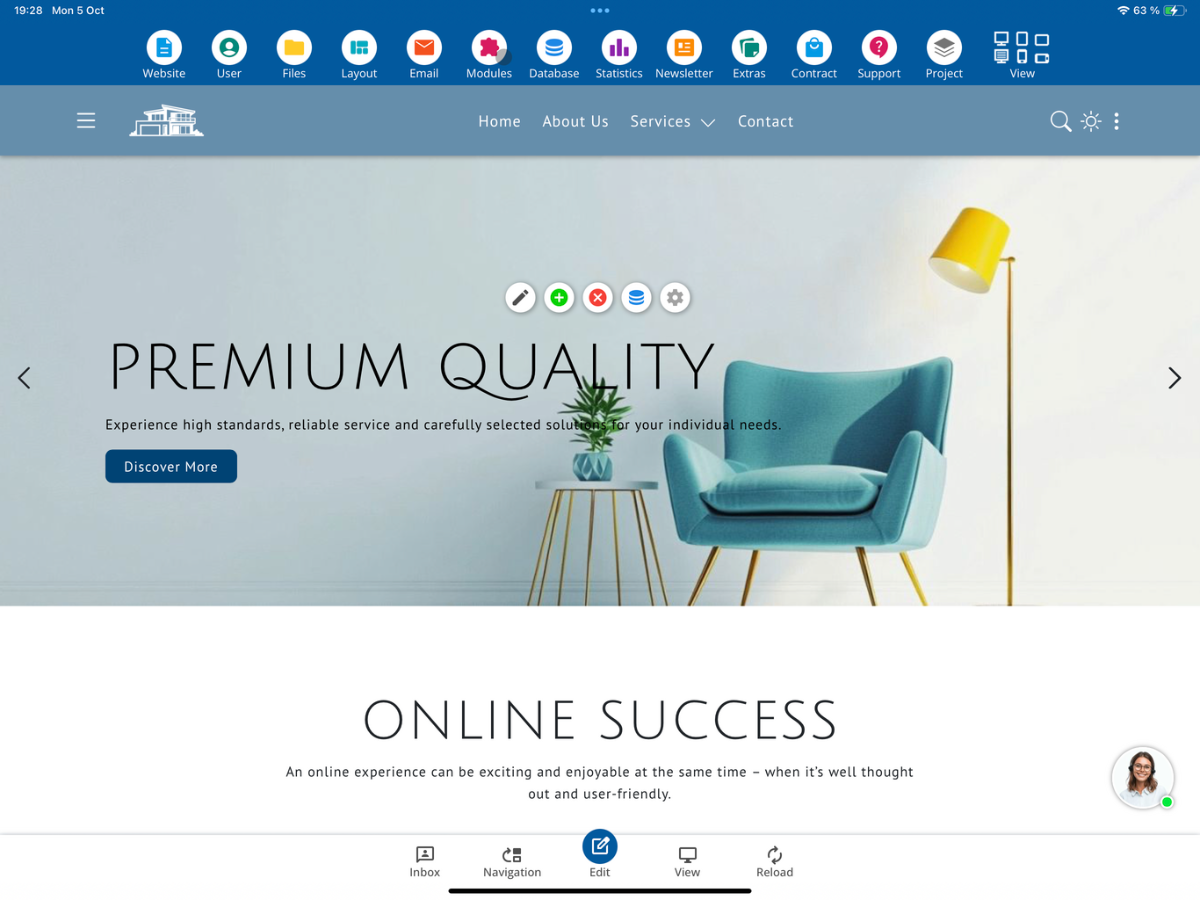
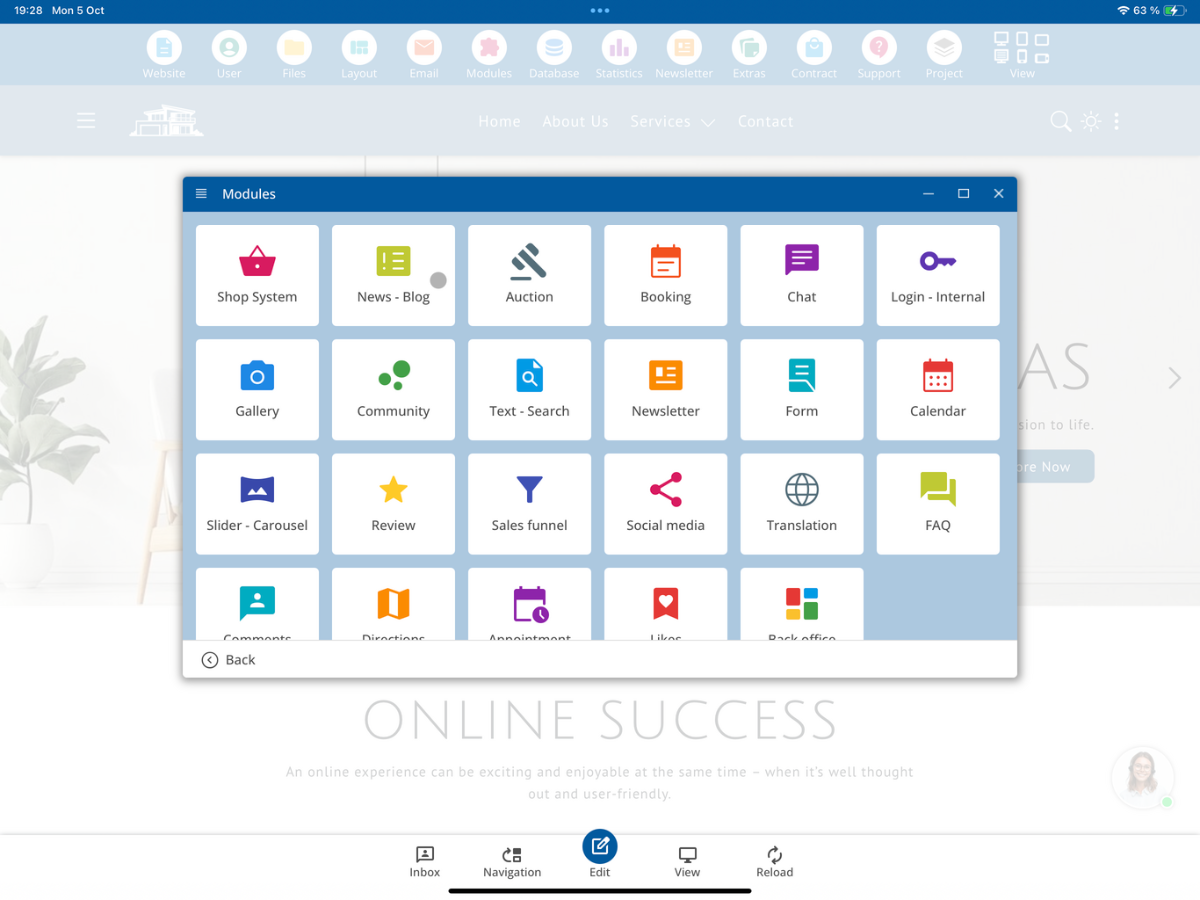
Open Modules in the CMS and select News - Blog.
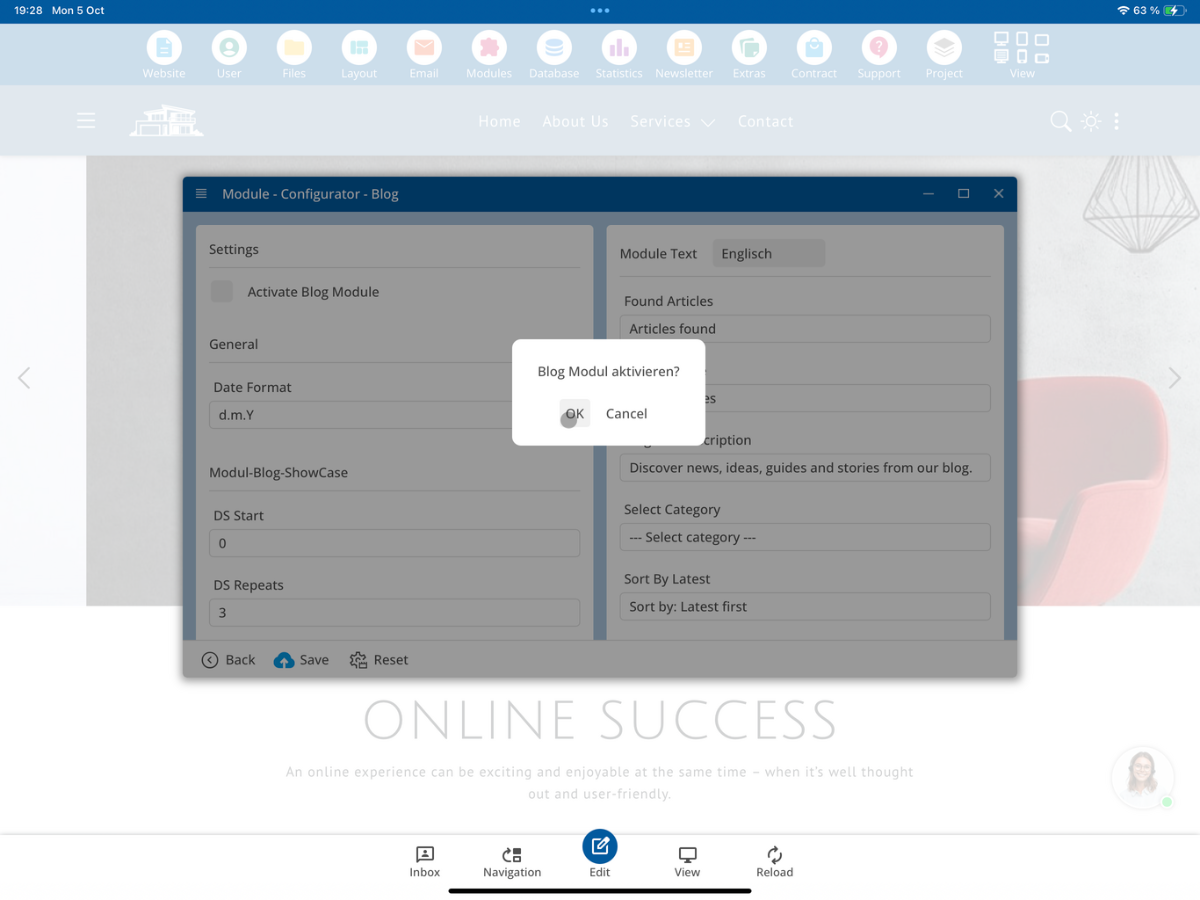
Activate the option Activate Blog Module and confirm the security prompt with OK.
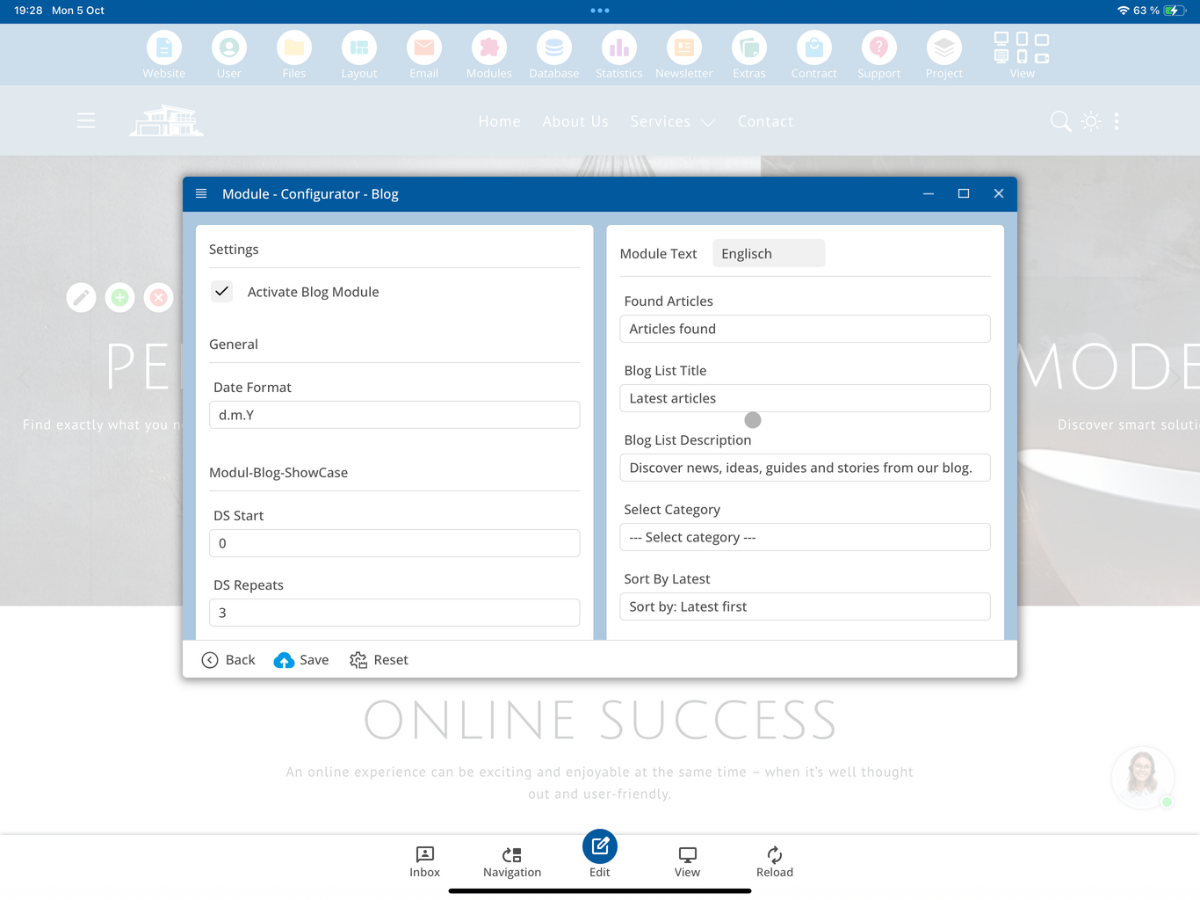
The module configurator will then be available to you. On the left are the technical settings, on the right the language-dependent module texts.
2. Embed blog list in a CMS page
Open the page /Blog/index.html and select HTML Code. The blog page is integrated via a short CMS tag.
<!--bx_Mod/Blog/Modul-Blog-List-->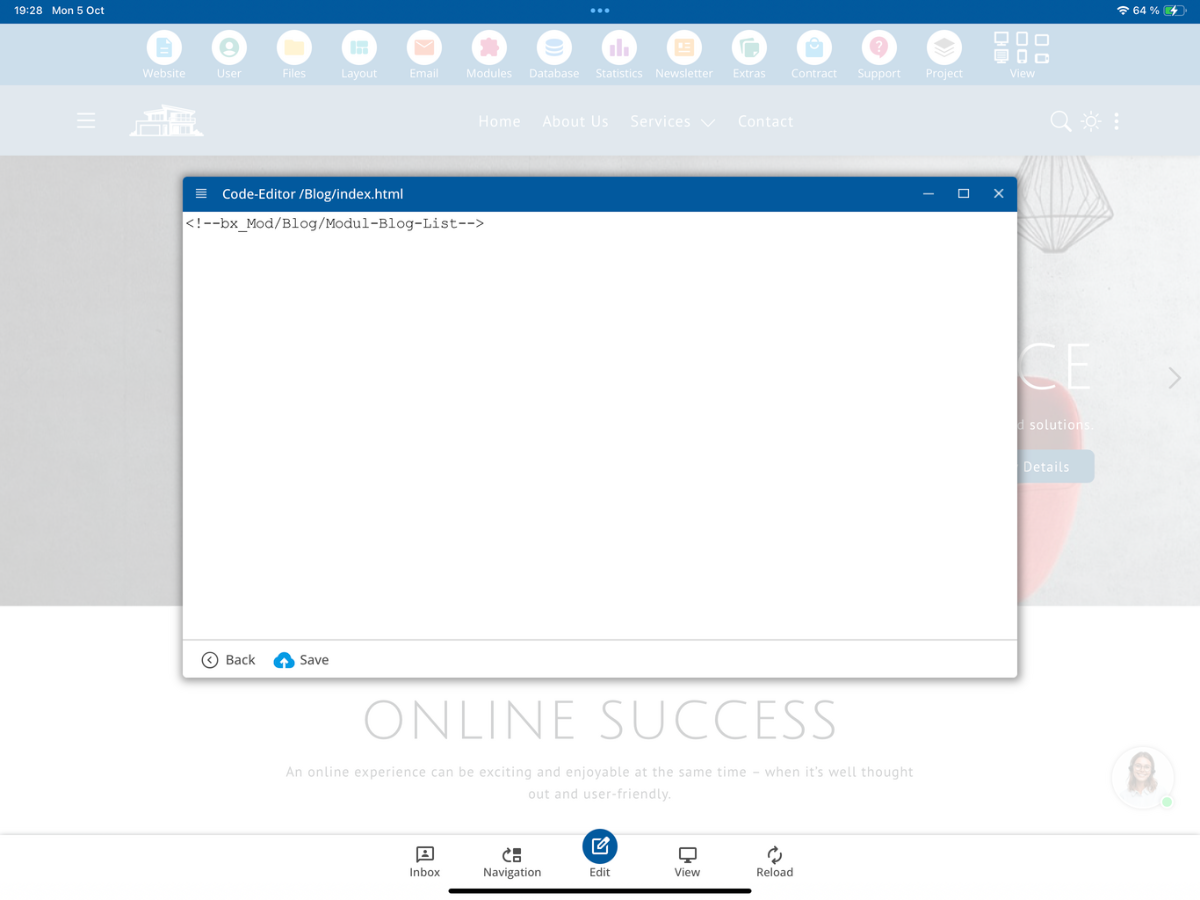
The tag points to the blog module and its list view. The CMS will insert the generated output of the module at this location during rendering.
3. Open central module files in the file manager
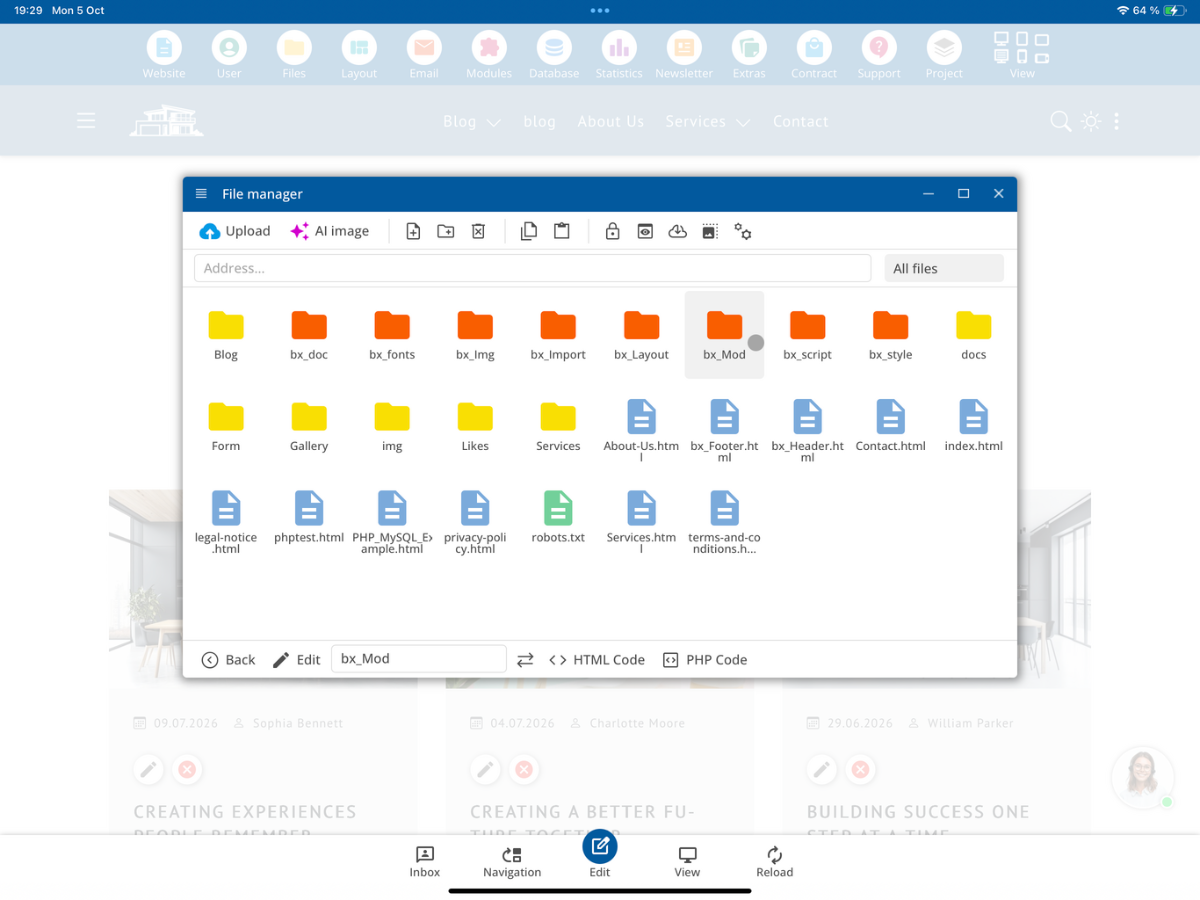
The actual PHP and HTML logic of the modules is not directly in the page HTML but centrally in the system folder bx_Mod. First, open this folder in the file manager, and then the subfolder Blog.
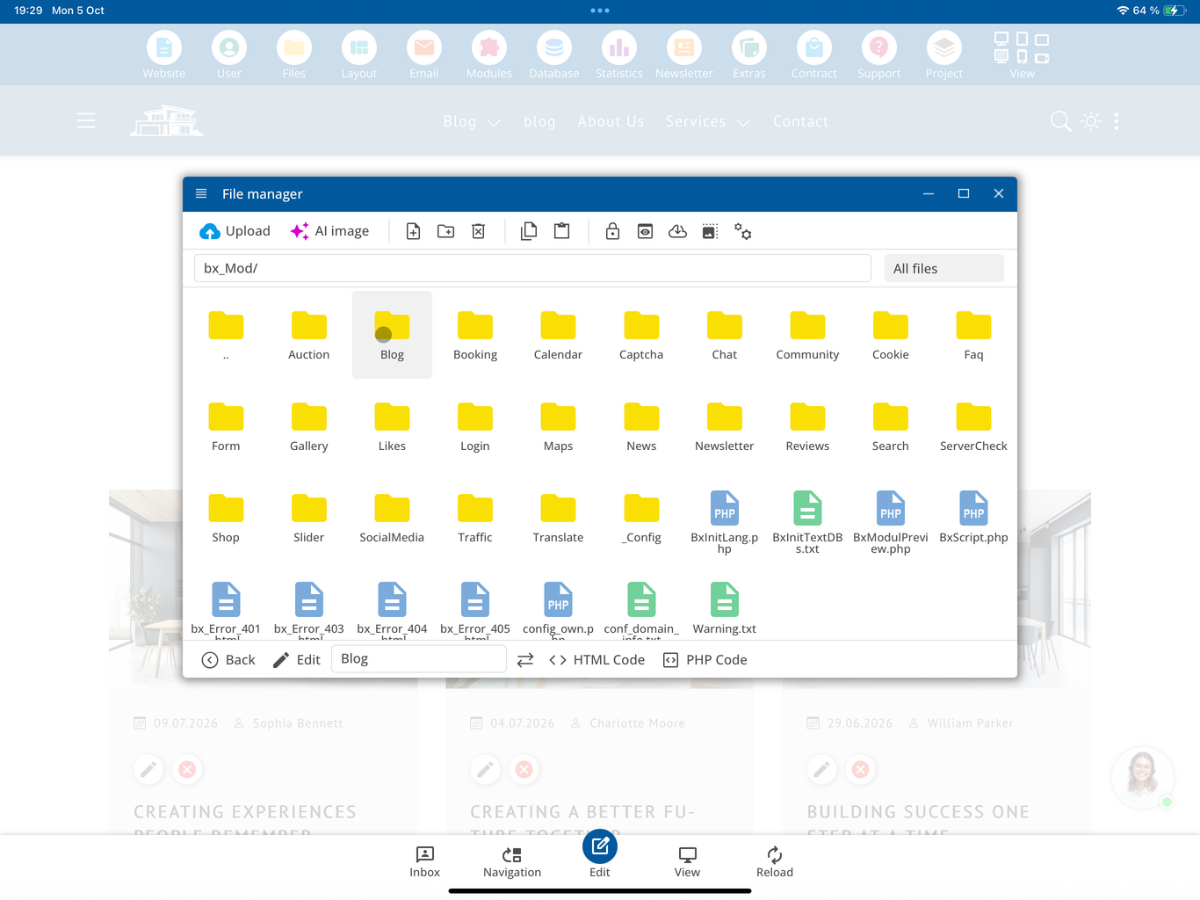
In the Blog folder, you will find, for example, Modul-Blog-List.php, Modul-Blog-ShowCase.php, config.php, other module files, and the subfolder languages.
4. View the standard file of the blog list
Select Modul-Blog-List.php and open it via Edit.
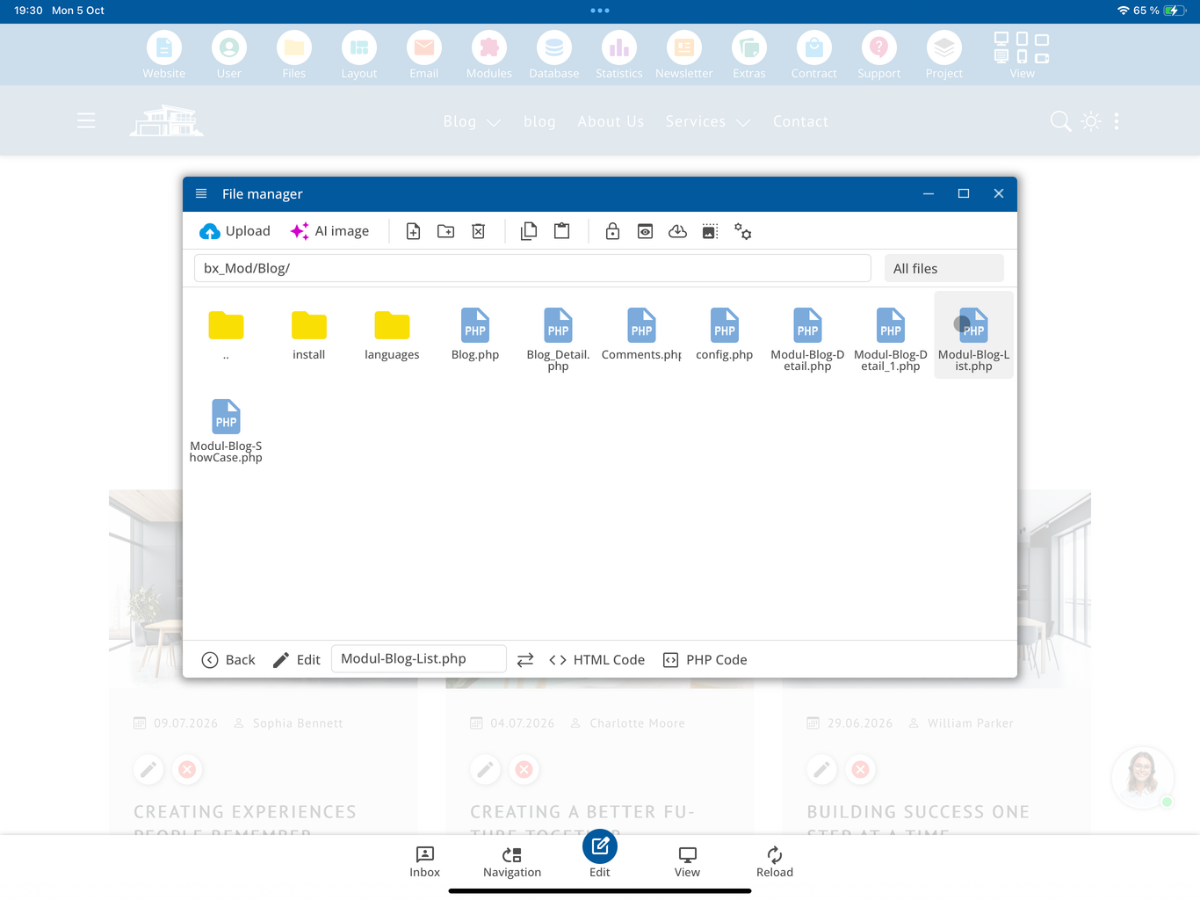
The standard file contains the program logic for the list view. In the code shown, among other things, the module configuration and, if available, the project-specific config_own.php are included.
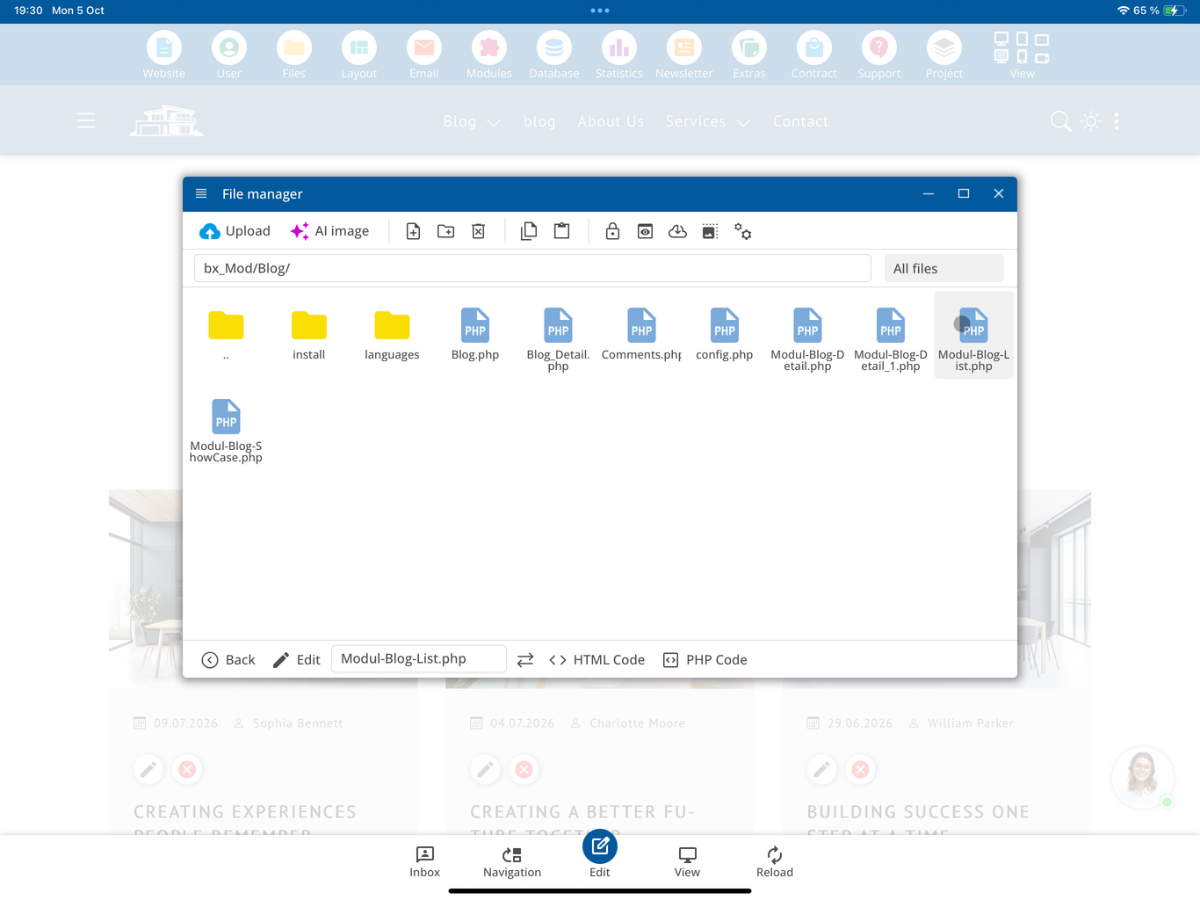
This allows a single module inclusion to use the same central program logic on different pages. For projects using the standard module, later CMS updates may provide changes to this file.
Do not edit the original Modul-Blog-List.php directly. It belongs to the system and may be overwritten during a CMS update.
5. Create your own list view with _own
To change the output yourself, copy the standard file. Your own copy will be labeled exactly with _own:
Modul-Blog-List.php
        ↓ kopieren
Modul-Blog-List_own.php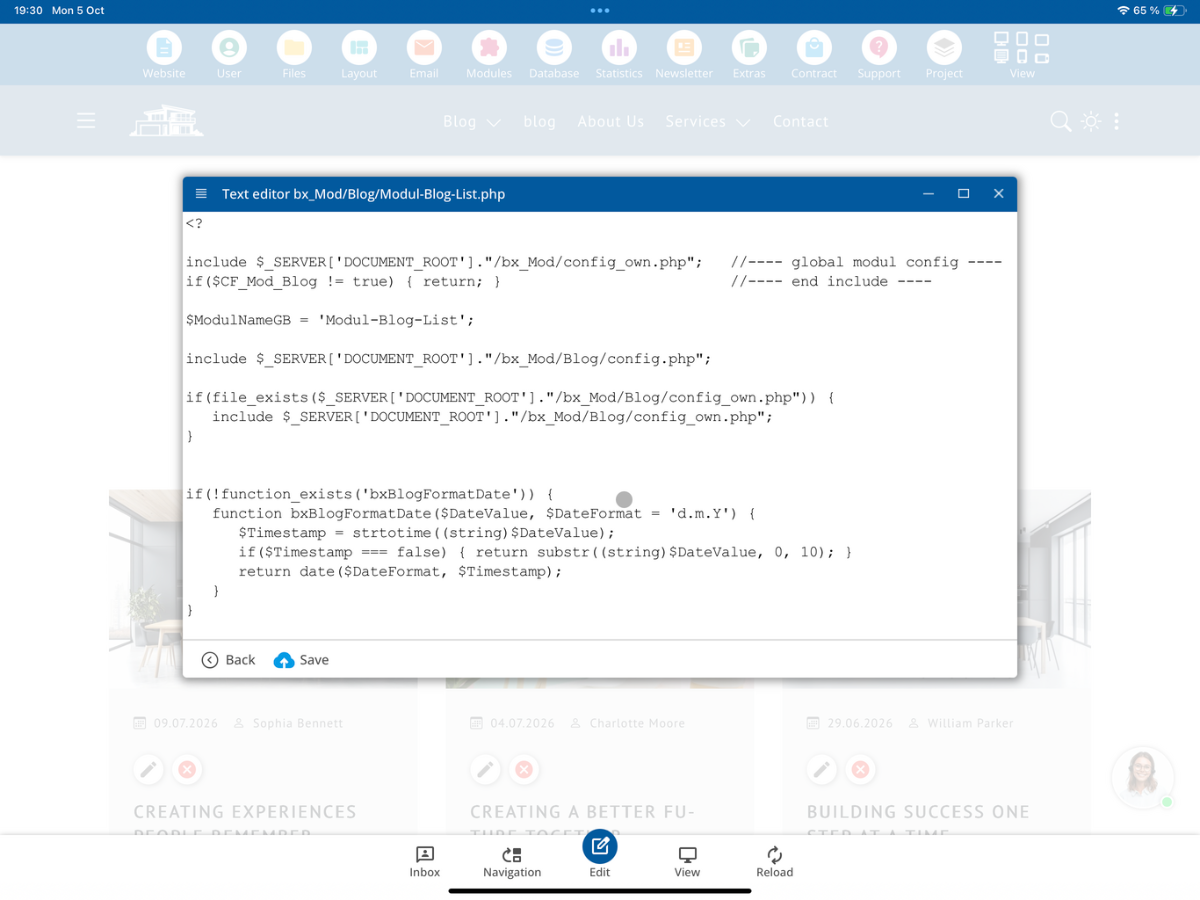
Open the new file Modul-Blog-List_own.php. In this project-specific version, you can change PHP logic and HTML output without touching the standard file.
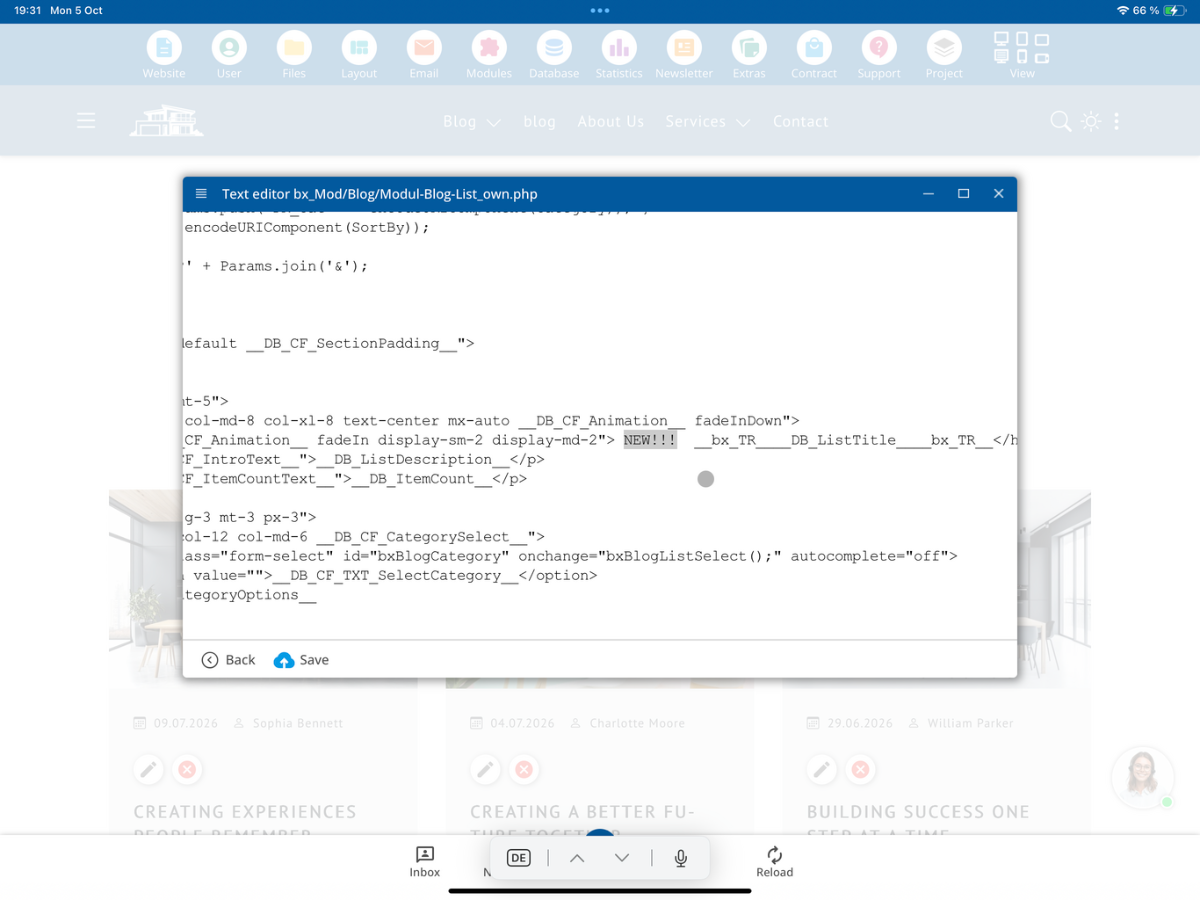
In our test, we will add the clearly visible string NEW!!!! to the headline. The rest of the list view remains unchanged.
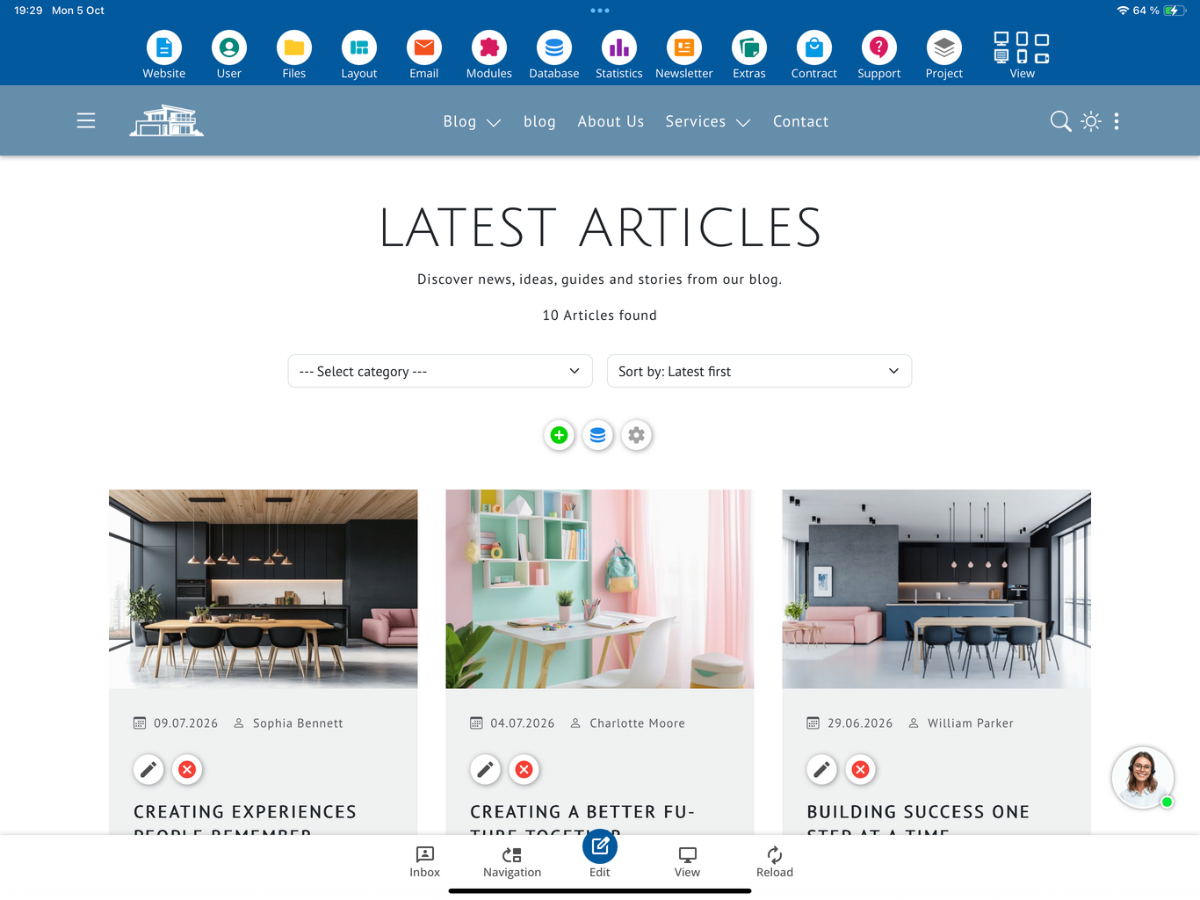
Save your own module file and reload the blog page. The CMS uses the appropriate _own variant, while the placeholder in /Blog/index.html remains unchanged. You can identify the active custom file by the changed heading NEW!!!! LATEST ARTICLES.
6. Module settings and your own configuration
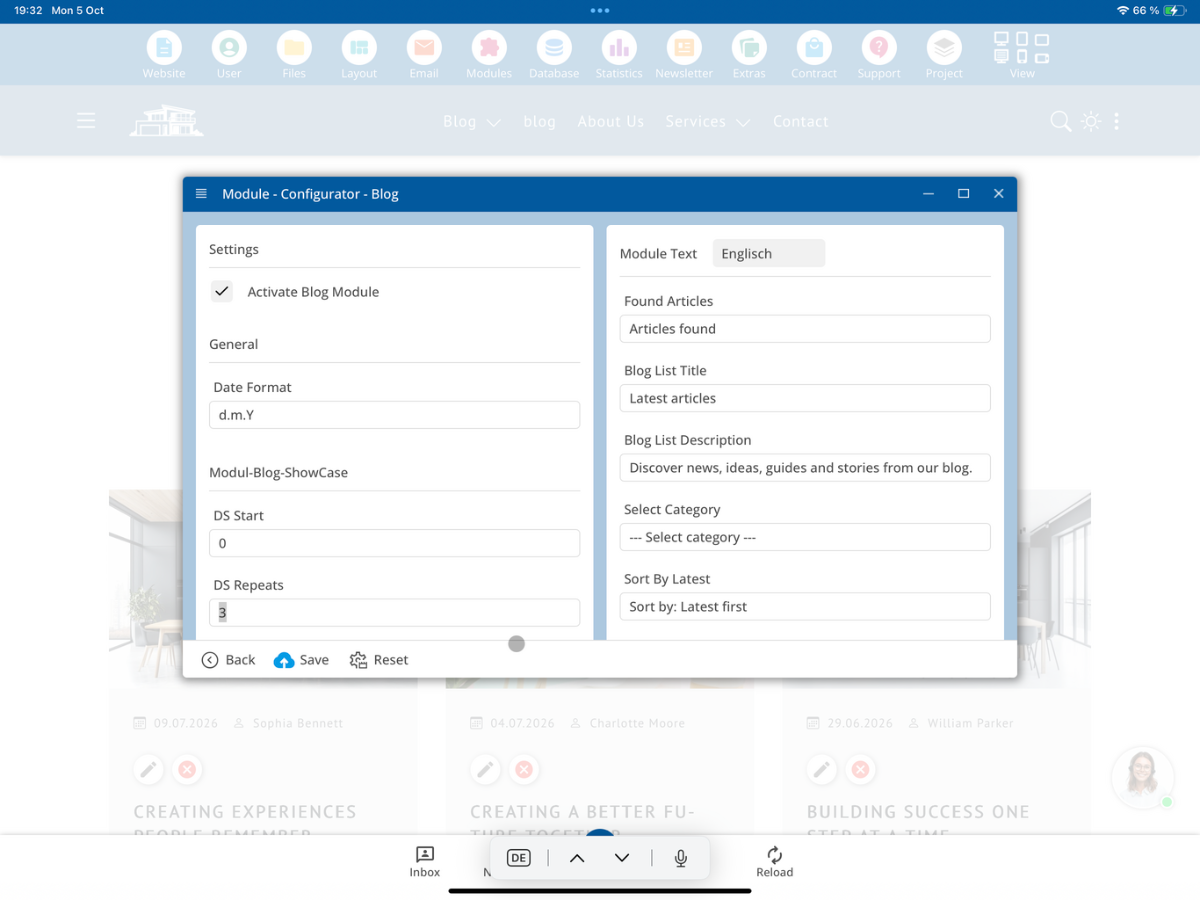
Besides the HTML output, you can also change the configuration of the module. The screenshot shows, for example, the value DS Repeats = 3 for Modul-Blog-ShowCase in the configurator.
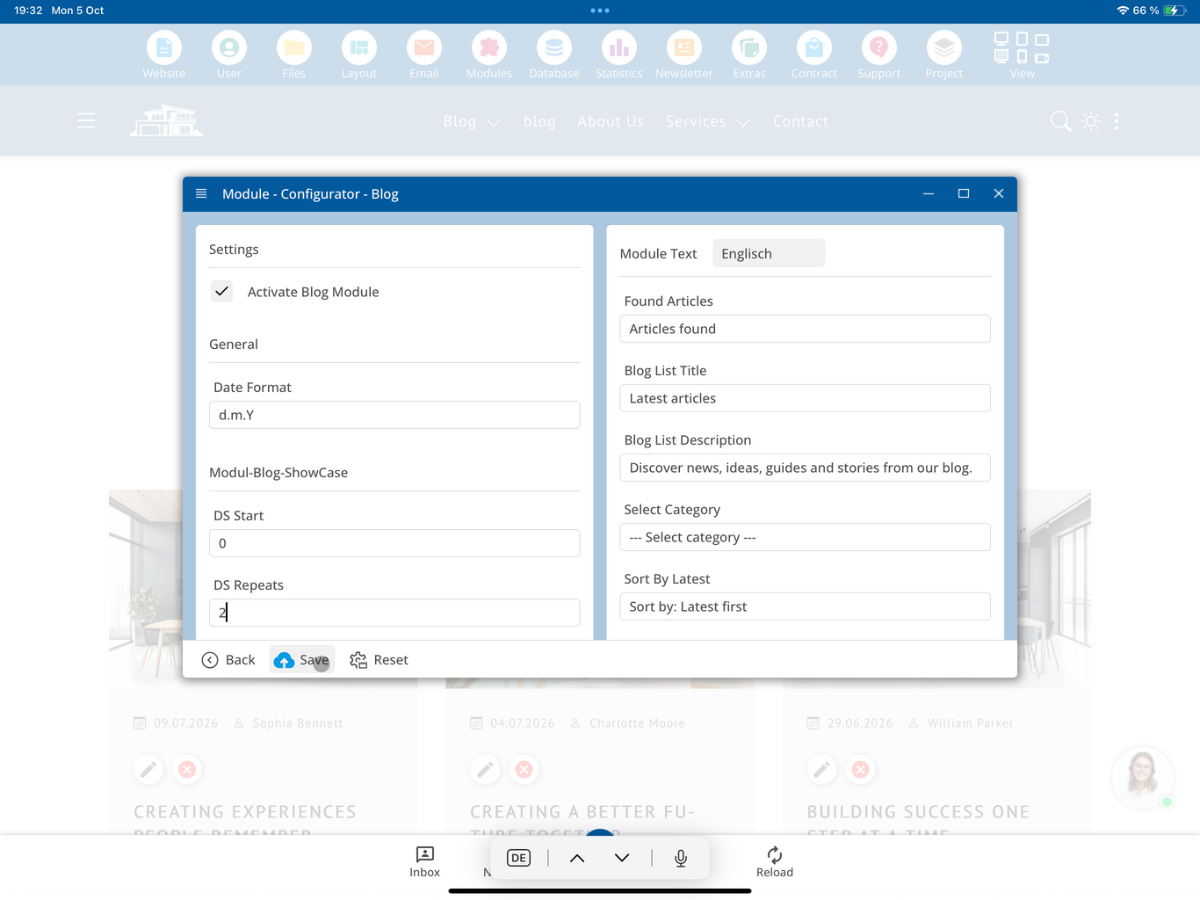
Change the value to 2 and save the setting. This sets the desired number for this ShowCase area. The setting applies to Modul-Blog-ShowCase and is not automatically equivalent to the number of all articles in the blog list view.
The custom configuration is located under bx_Mod/Blog/config_own.php. Select this file in the file manager.
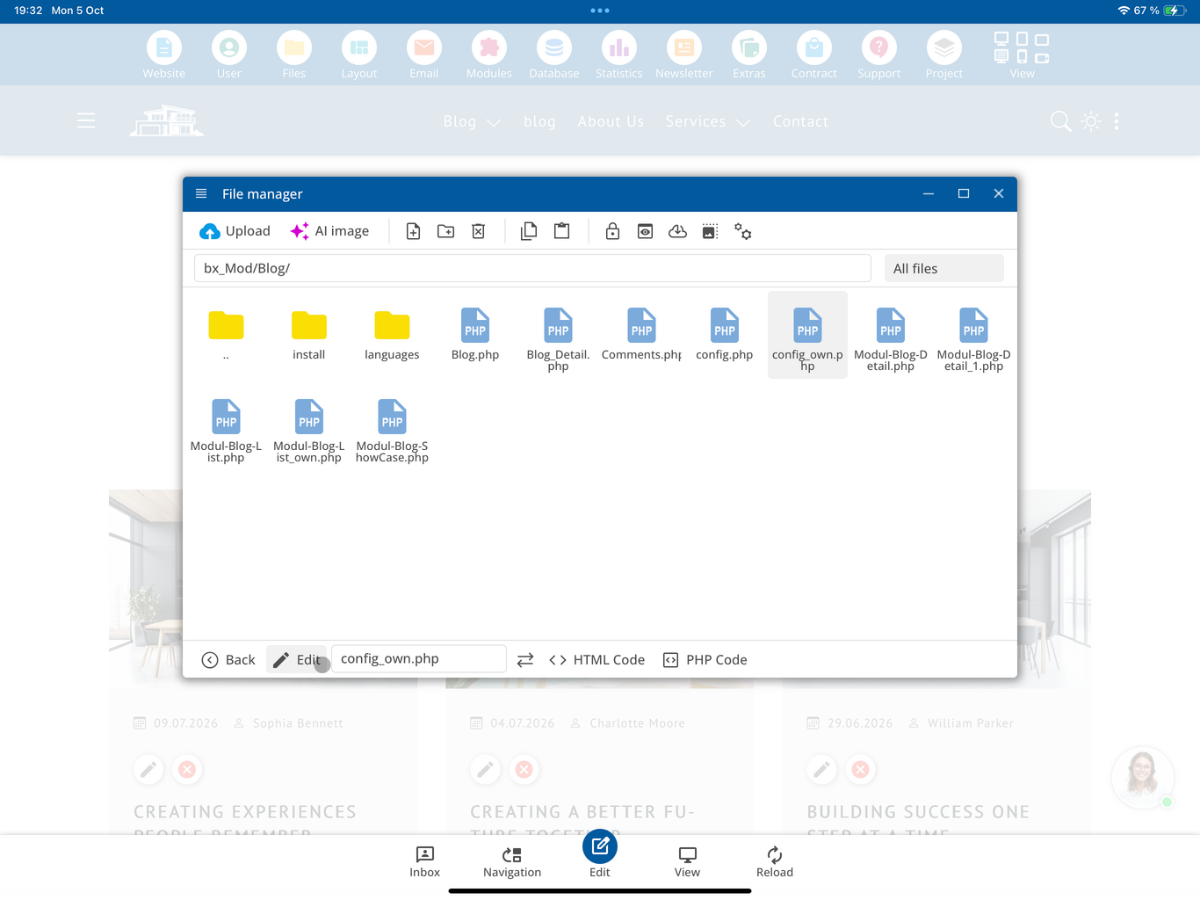
The shown config_own.php specifically overrides the value only when the affected module area Modul-Blog-ShowCase is loaded:
if($ModulNameGB == "Modul-Blog-ShowCase") {
   $CF_DS_Repeats = 2;
}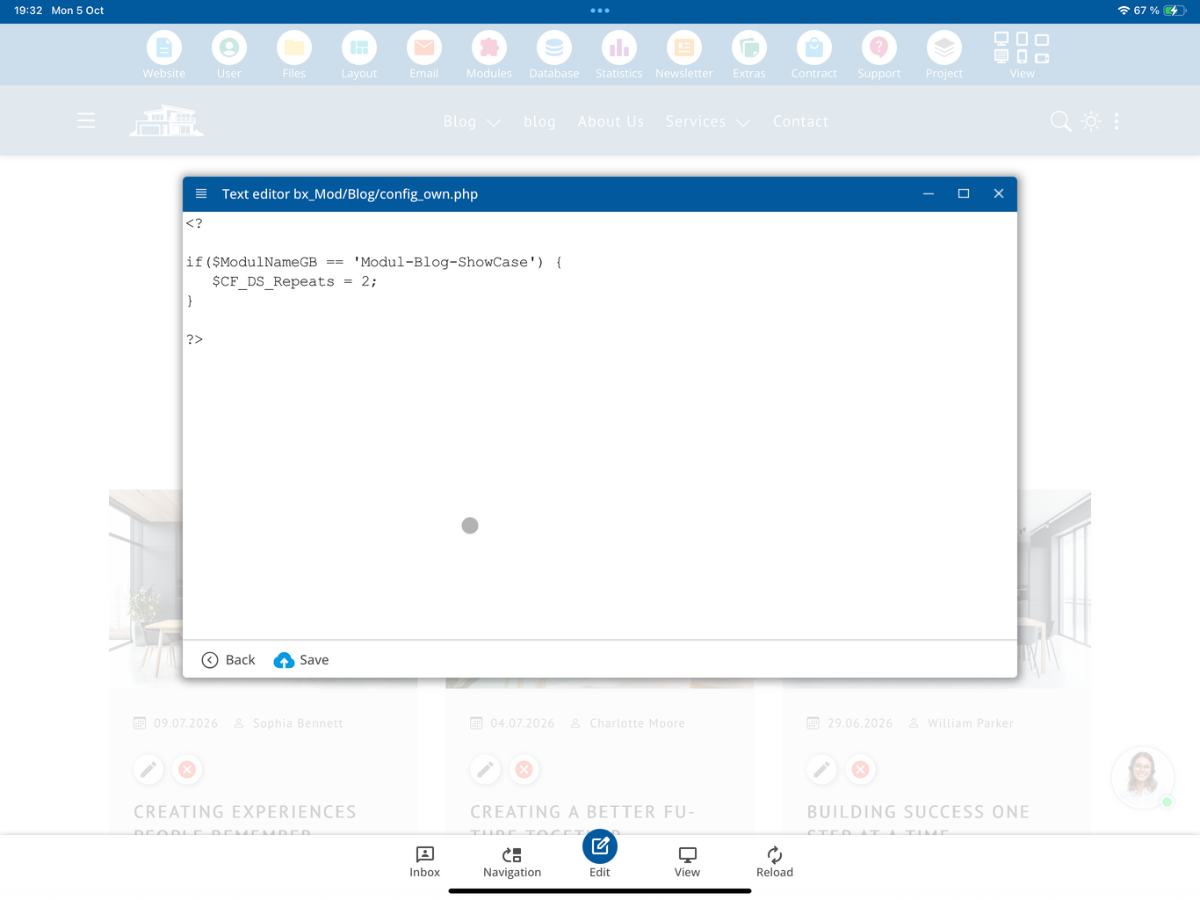
The default values still come from config.php. Therefore, a custom configuration file does not need to repeat all default values but can just contain the desired deviations.
7. Define database table and module pages
In the default configuration bx_Mod/Blog/config.php, you will find, among other things, the database table used as well as the paths to the detail and list views. In the shown example, the values are:
$CF_DatabaseTable = "Blog";

$CF_DetailPage = "/Blog/Detail.html";
$CF_ListPage = "/Blog/index.html";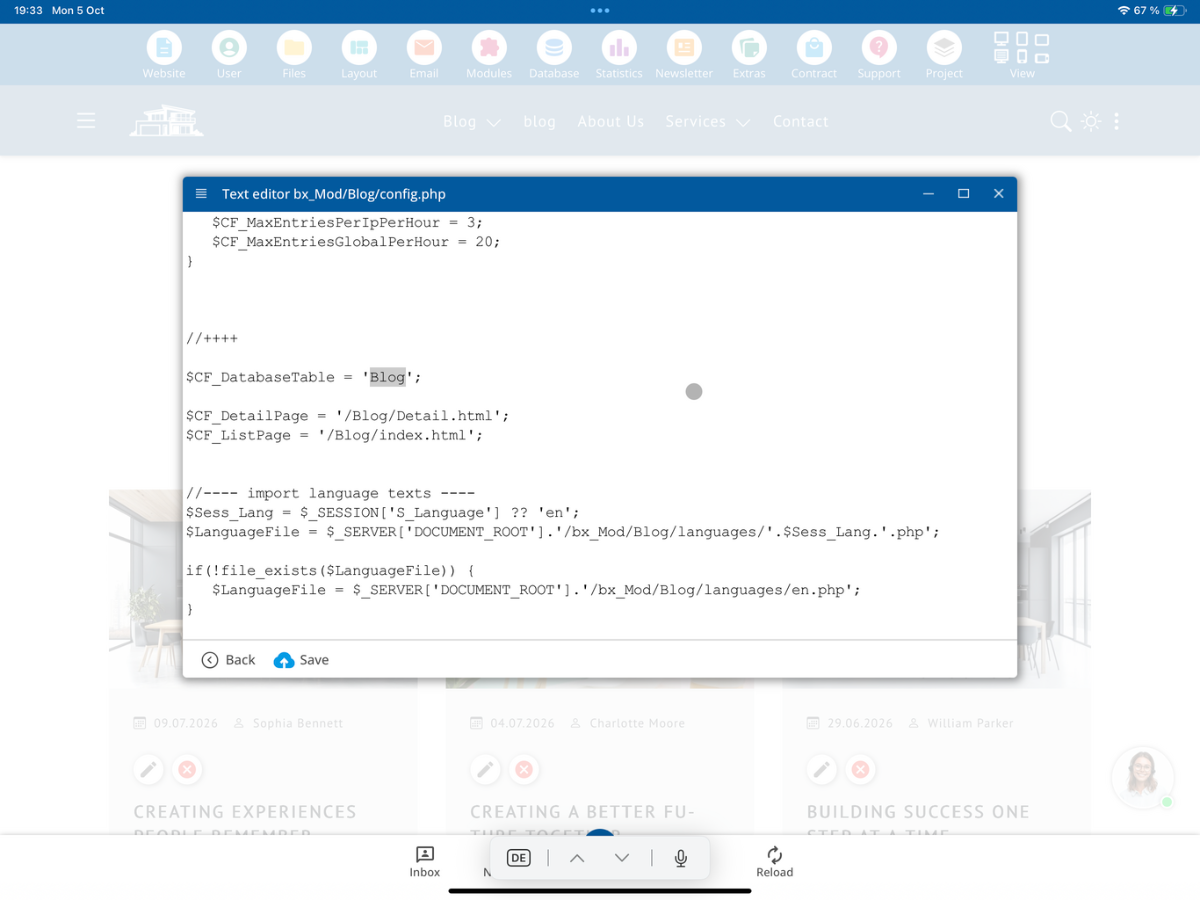
If you are developing your own variant for a different purpose based on the blog module, you can, in your own configuration, specify a different database table. Check whether the new table contains the fields expected by your module file and whether the list and detail pages match the new variant.
8. Language files of the module
Under bx_Mod/Blog/languages, you will find the language files of the blog module. For the existing languages, there are separate PHP files, such as de.php, en.php, and fr.php.
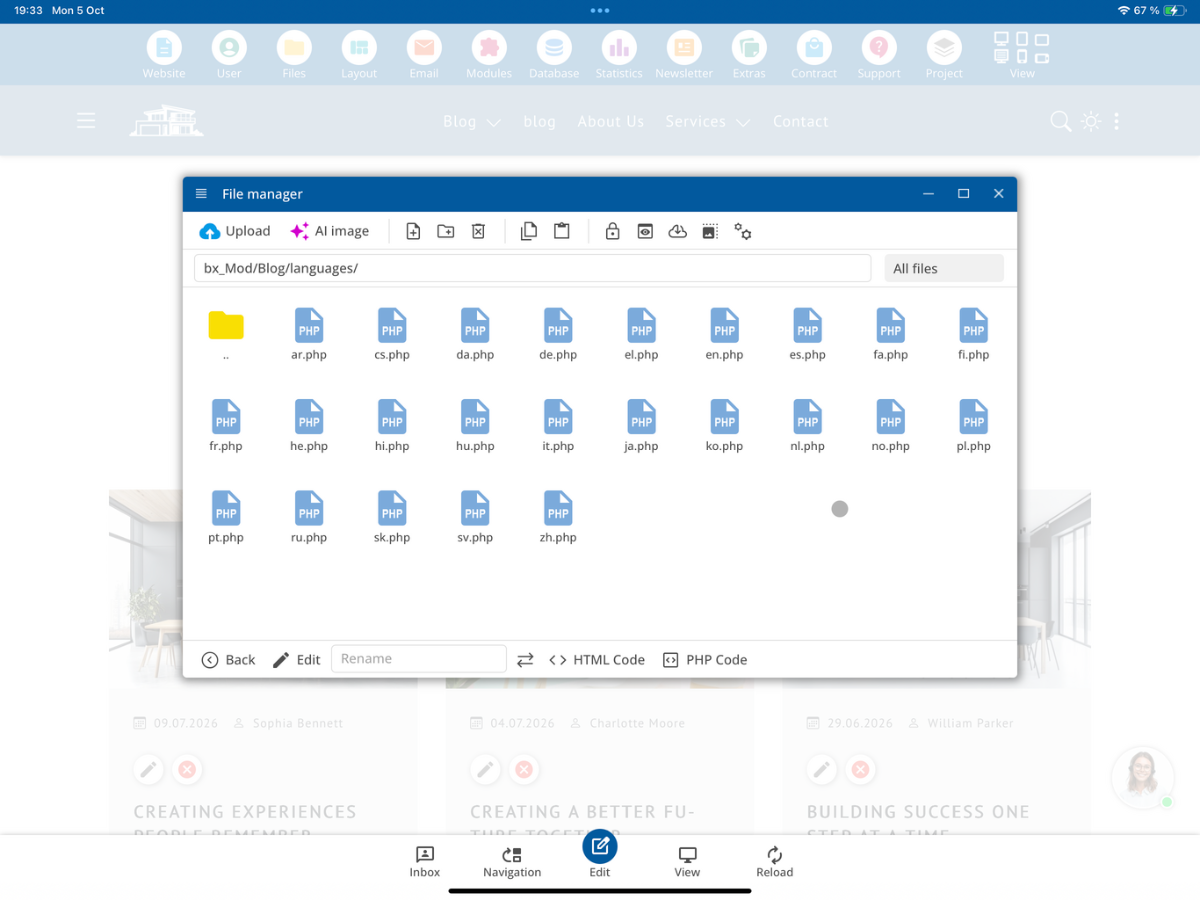
Here, language-specific module texts are managed. For project-specific changes, use the custom file format supported by your module version instead of directly overwriting the original language files.
9. Distinguish between standard module and your own version
The _own rule protects your adjustments from being overwritten by regular updates. At the same time, you are responsible for maintaining this individual version yourself. Check for important changes to the standard file in later CMS updates and see if they are relevant to your own file.
10. Summary
You activate the blog module under Module → News - Blog, include the list view via a CMS marker, and manage the actual program logic centrally under bx_Mod/Blog. For your own changes, copy Modul-Blog-List.php to Modul-Blog-List_own.php. Any settings that deviate from the standard can be saved in config_own.php if needed.
CMS-Seite /Blog/index.html
        ↓ Modul-Markierung
bx_Mod/Blog/Modul-Blog-List.php
        ↓ passende _own-Datei vorhanden?
Modul-Blog-List_own.php
        ↓ Konfiguration und Datenbank
HTML-Ausgabe innerhalb der CMS-Seite
This way, an existing module can be specifically expanded without changing the original system files.
FAQ
what customers often ask us
What access do I need to customize CMS modules?
You need a developer access to the bluetronix CMS. Additionally, you should know the developer folders and the _own rule.
Where do I activate the blog module?
Open Modules, select News - Blog, and enable Activate Blog Module. Confirm the security prompt.
How do I integrate the blog list into a CMS page?
Open the HTML code of the desired page and insert the module tag <!--bx_Mod/Blog/Modul-Blog-List-->.
Do I have to copy the entire PHP code of the blog list into the page?
No. The page only contains the module tag. The associated logic is loaded centrally from the blog module.
Where is the standard file for the blog list located?
You can find it under bx_Mod/Blog/Modul-Blog-List.php in the developer area of the file manager.
How do I customize a module file to be update-compatible?
Copy the standard file and label the copy with _own, for example Modul-Blog-List_own.php. Then, only edit this own file.
Does the module tag need to be changed when I create an _own file?
No. For a module file supported by the CMS, the corresponding _own variant can be used automatically without changing the existing module integration.
What is config_own.php needed for?
Through bx_Mod/Blog/config_own.php, you can overwrite individual values from the standard configuration project-specifically.
What does DS Repeats do in this example?
In the shown example, the setting for Modul-Blog-ShowCase is changed from 3 to 2. It determines the number of repetitions of this module area.
Where is it specified which database table the blog module uses?
In the configuration bx_Mod/Blog/config.php, it states in the example $CF_DatabaseTable = "Blog";. The assignment can be adjusted for a custom module variant.
Where can I find the language files of the blog module?
The language-dependent PHP files are located under bx_Mod/Blog/languages, for example de.php and en.php.
Who is responsible for maintaining a custom module file?
The own _own file remains during regular CMS updates. The developer must check whether new bug fixes or features from the standard file should be adopted.