

Assign page layout of a CMS page
In this tutorial, we will show you how to assign your self-created My Layout to an existing CMS page. Afterwards, your page will be displayed without a header and footer.
Open layout of an existing page
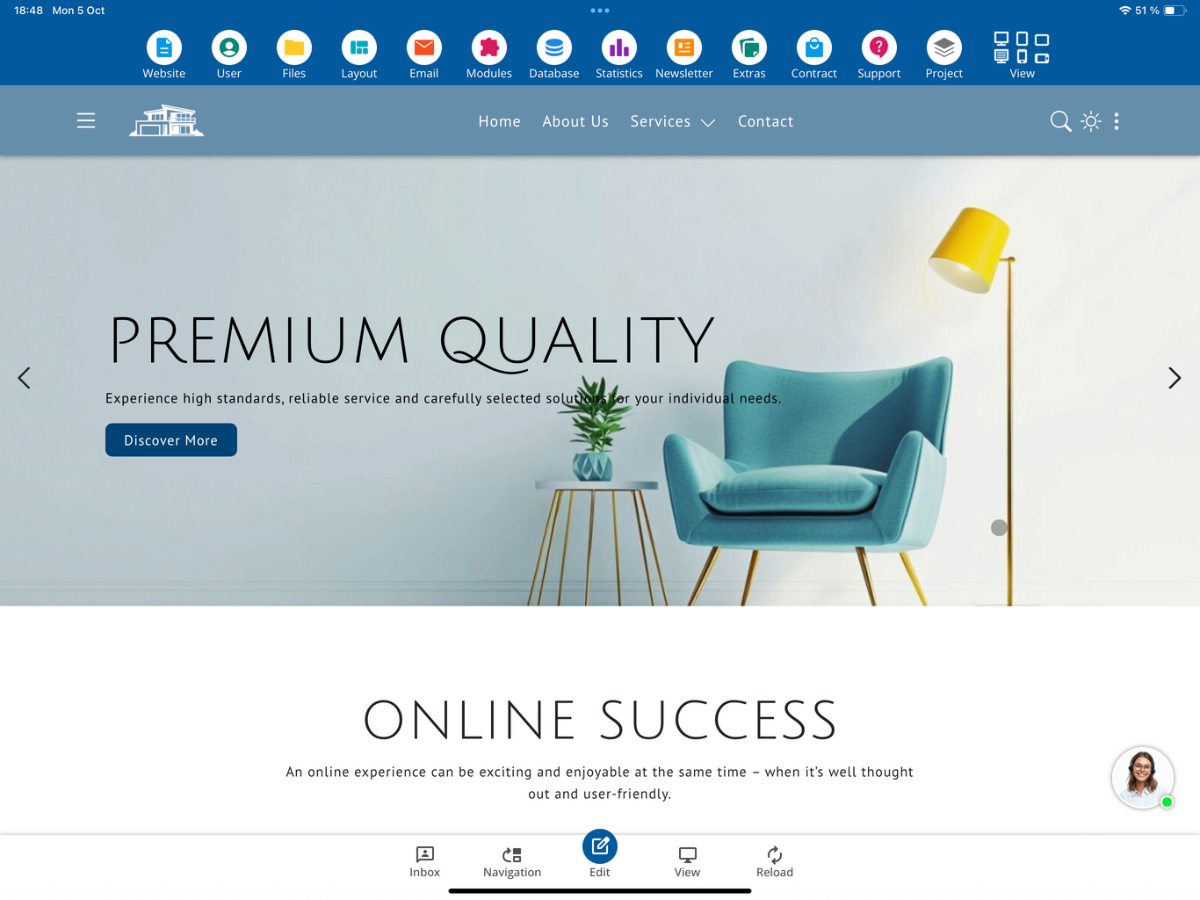
To edit the layout of an existing page, open Layout → Layout HTML. There you can choose between the standard layout and the layout of a single page.
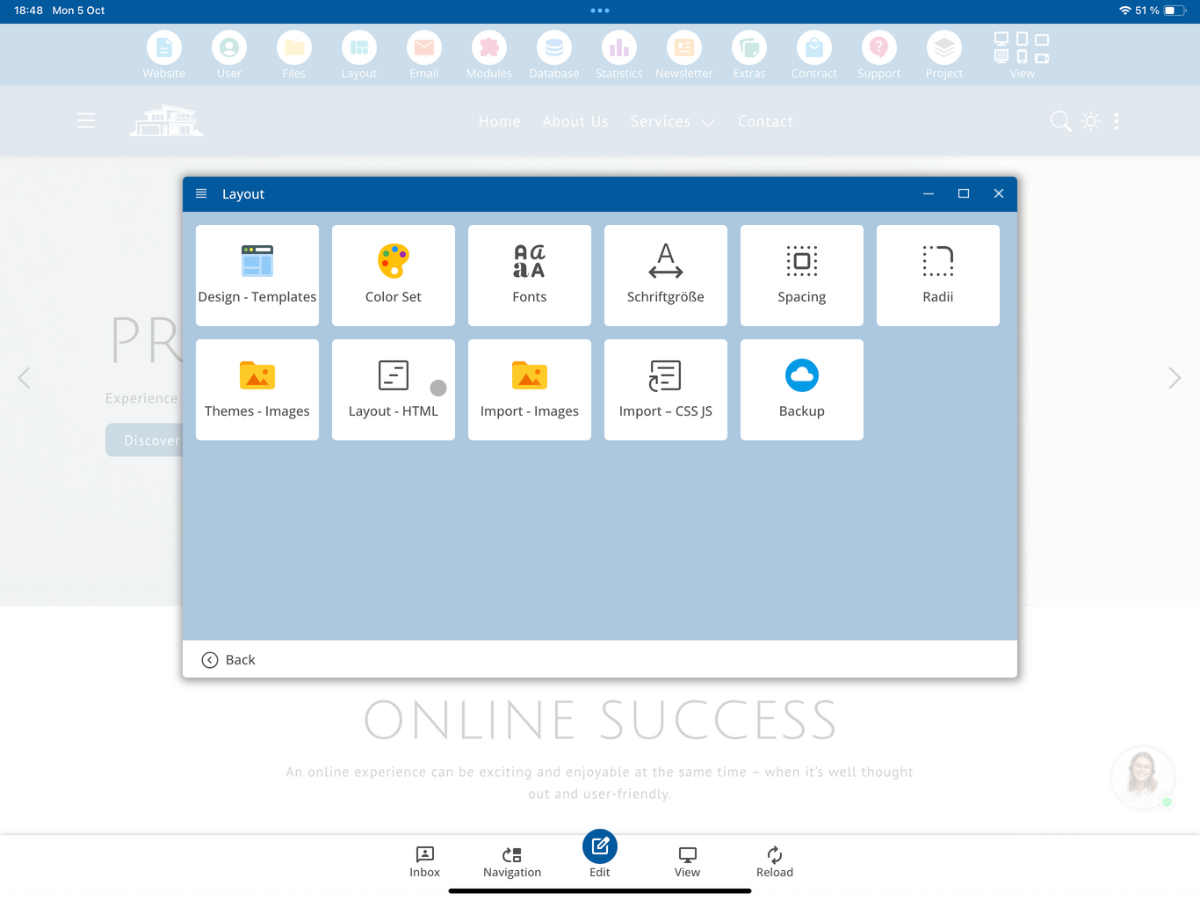
You can also create a layout yourself. How this works is explained in the separate tutorial on Layout Creation.
My Layout as example
In our example, we have already created My Layout. This layout omits the header and footer.
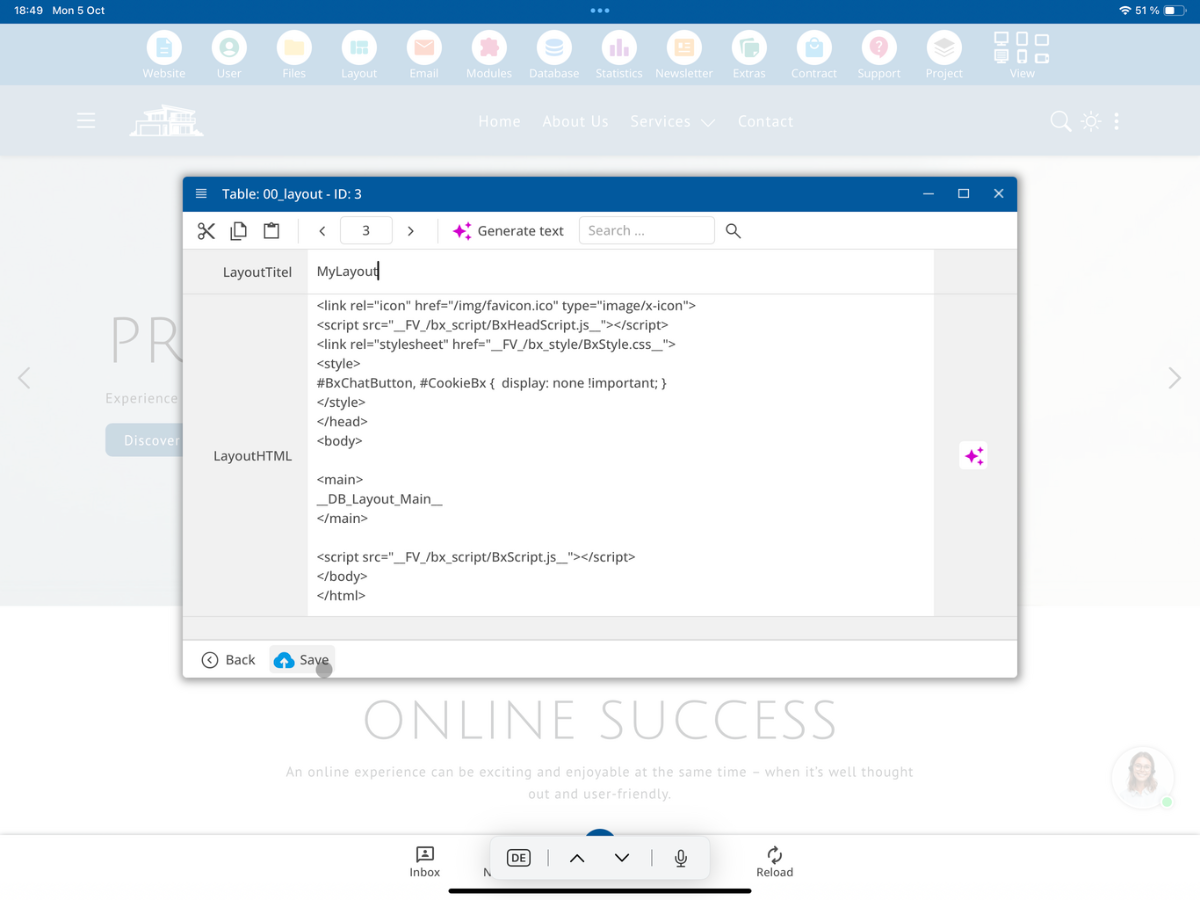
Assign My Layout to a page
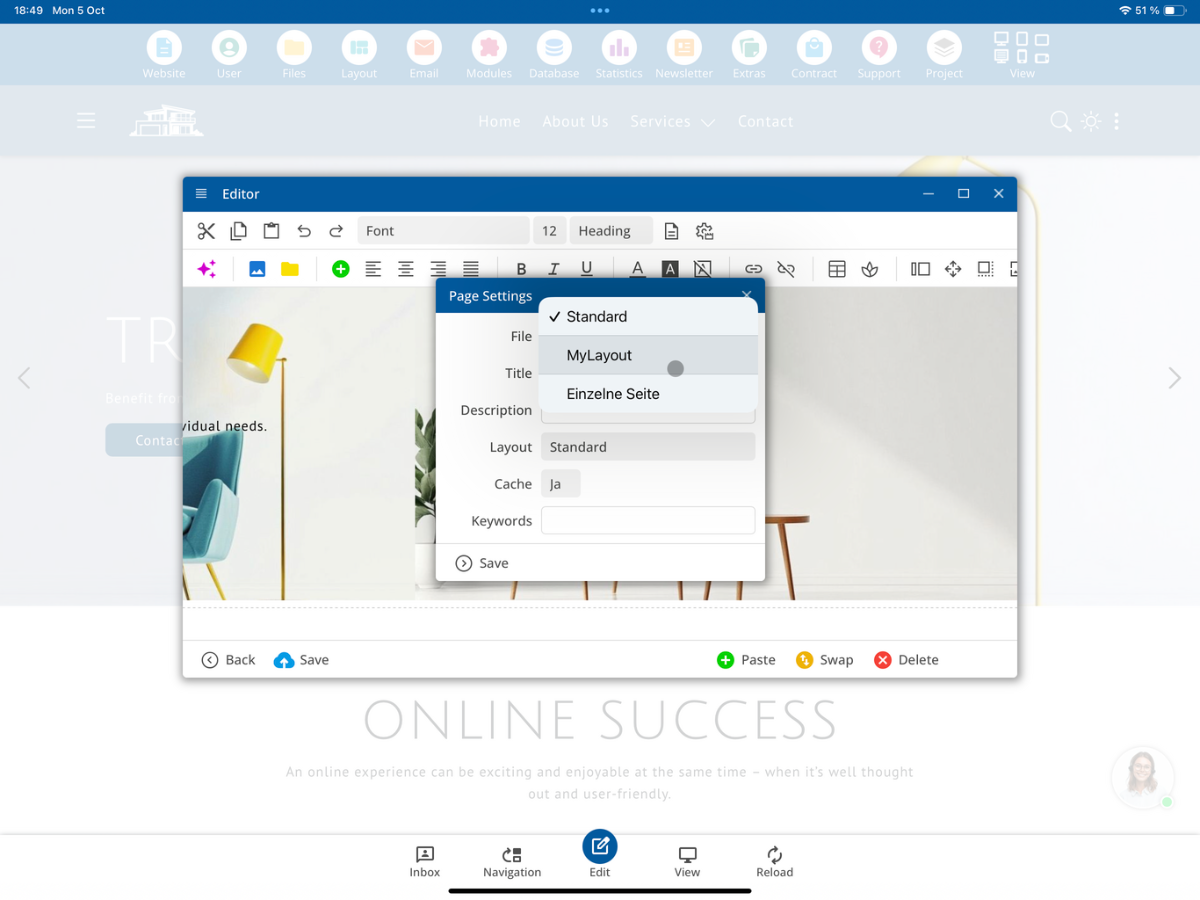
To switch to My Layout, edit your page and open the Page Settings.
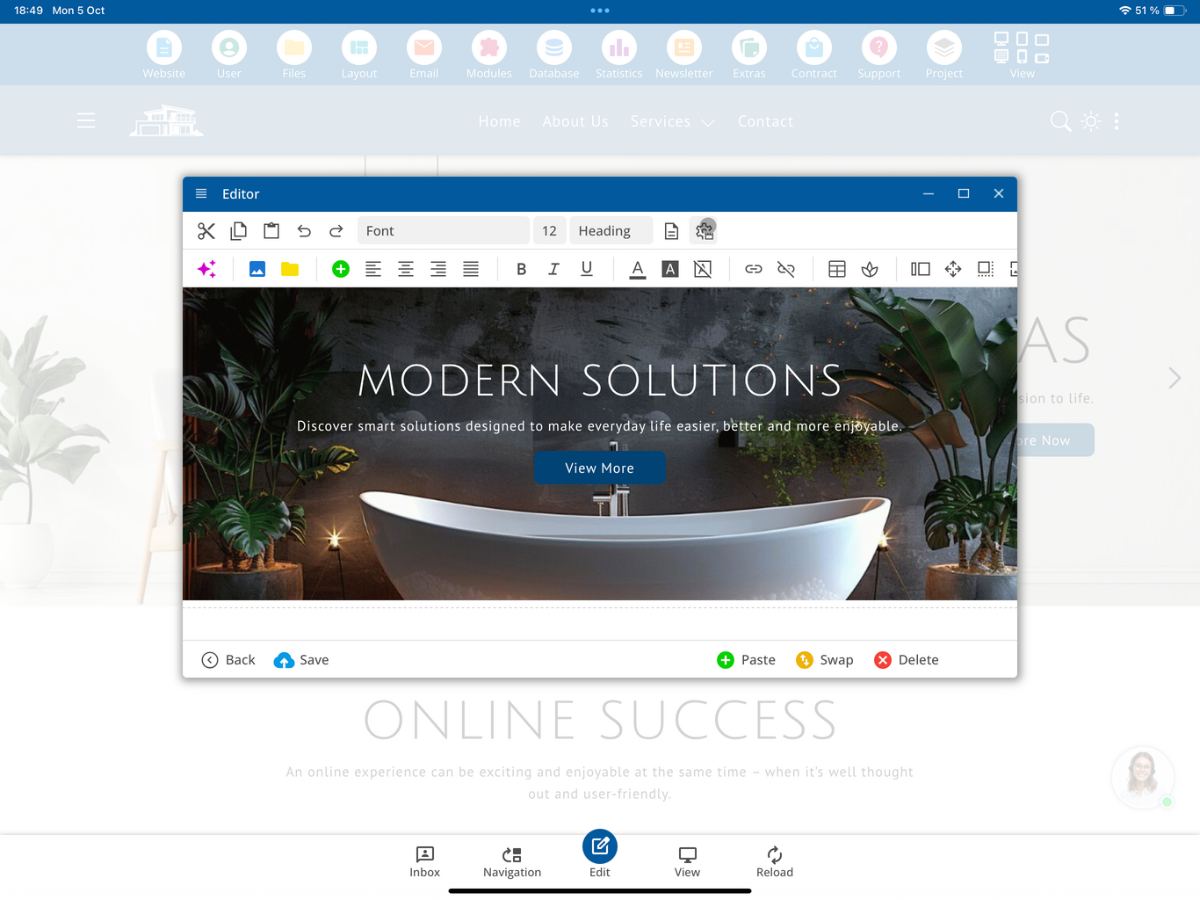
Select My Layout under Layout and tap on Save.
Result
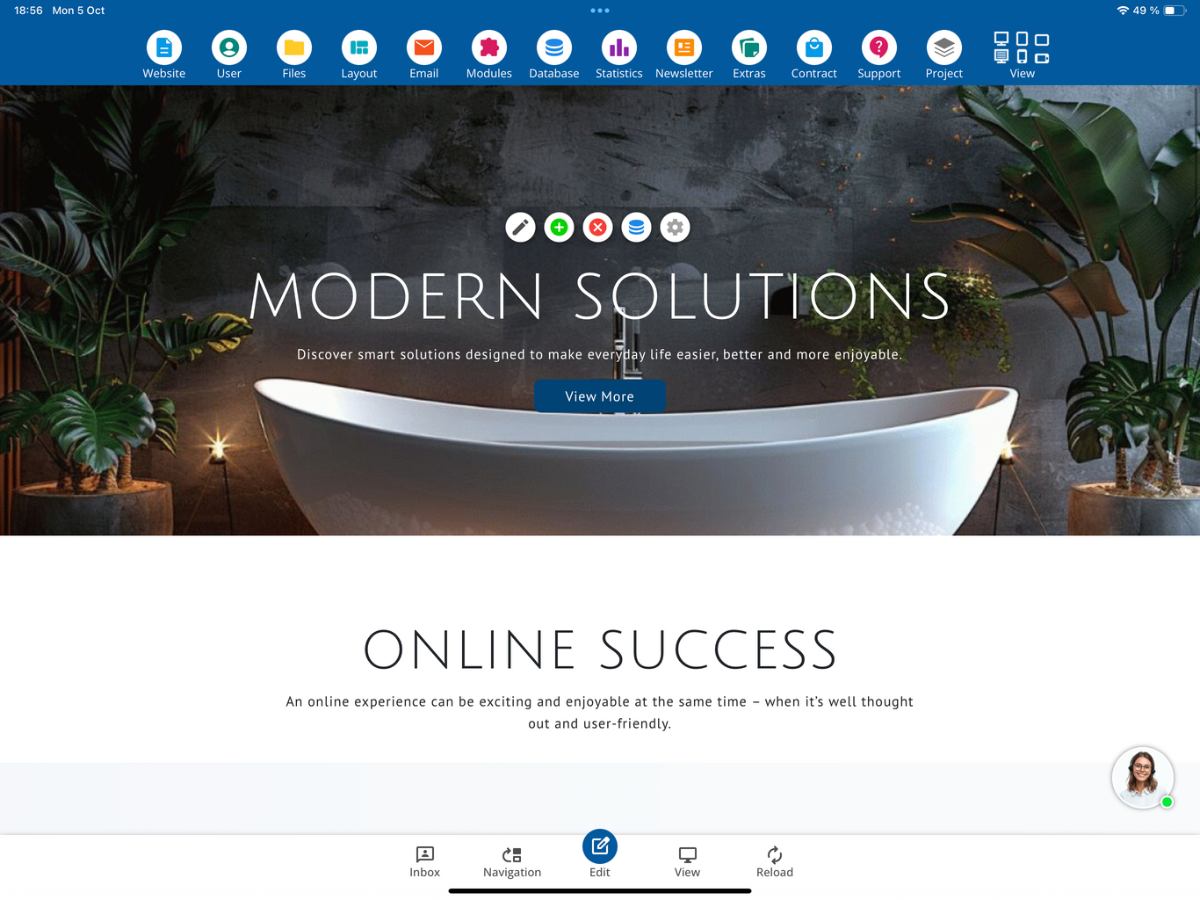
After that, you will see that the header is no longer displayed.
Have fun trying it out!
FAQ
what customers often ask us
Where can I edit the layout of an existing page?
Open Layout → Layout HTML in the bluetronix CMS. There you can choose between the standard layout and the layout of a single page.
Can I create my own layout?
Yes. How to create a layout yourself is explained in the separate tutorial on Layout Creation.
What is My Layout in this example?
My Layout is a self-created layout that omits the header and footer.
How do I assign My Layout to my page?
Edit the page, open the Page Settings, select My Layout under Layout and tap on Save.
What happens after saving?
The page uses My Layout. In our example, the header will no longer be displayed afterwards.