

Connect CMS edit buttons with PHP and MySQL
With a developer access, you can link a MySQL record to an edit button using its ID. This tutorial shows you how to read the ID with PHP, use it in $LayoutHTML, and enable content editing directly on your website.
Requirements and goal
You need developer access to the bluetronix CMS and the example page from the previous PHP and MySQL tutorial. It reads a record from a MySQL table and displays its contents on the website through $LayoutHTML.
Now we will connect this record to an edit button. In the screenshots shown, the table is called Test, and the displayed record has the ID 1. First, enhance the PHP script and then the HTML code of your example page.
1. PHP script: Read record and ID
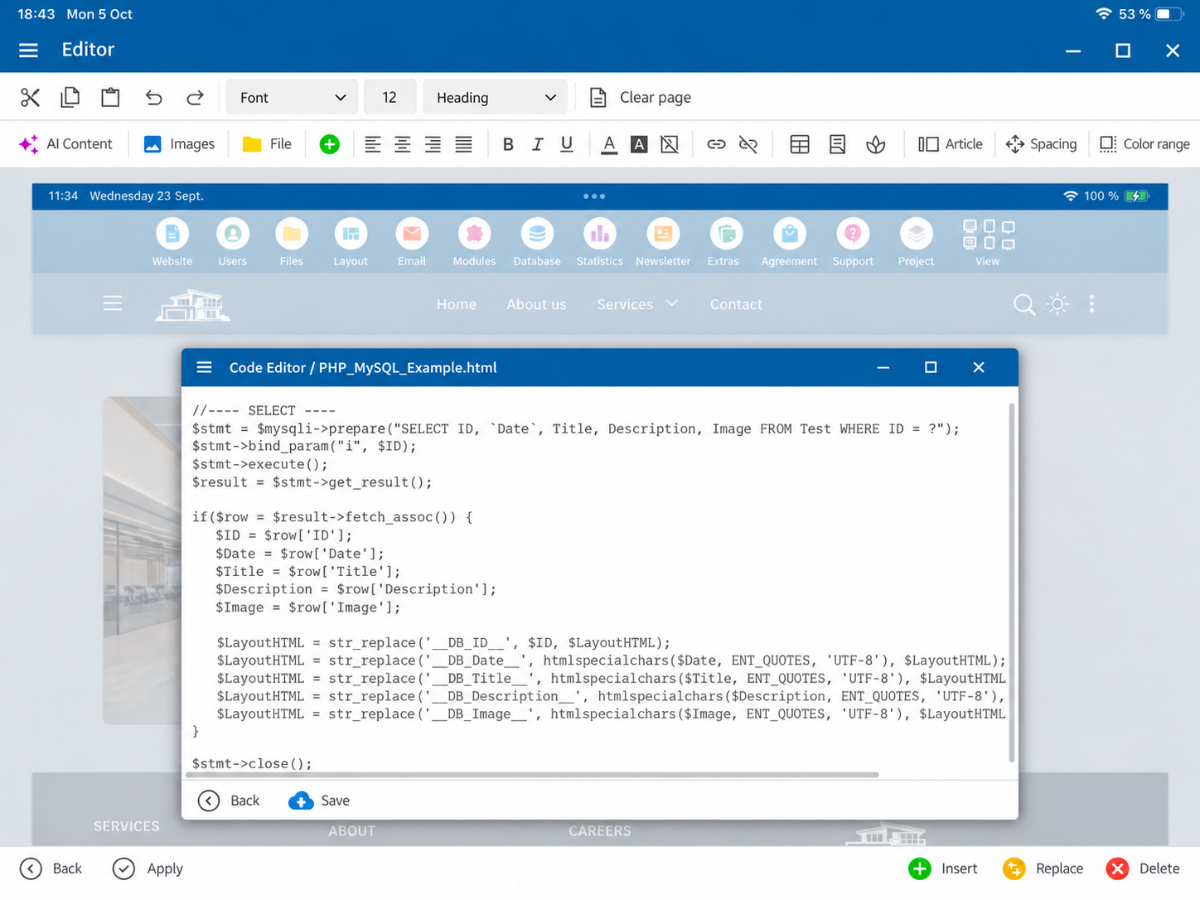
Open the PHP Code section on your example page. Use the following script as a complete SELECT example. The existing database connection $mysqli and the CMS variable $LayoutHTML are already available. You do not need additional PHP tags here.
$ID = 1; // Beispiel: der Datensatz, der auf dieser Seite angezeigt wird

//---- SELECT ----
$stmt = $mysqli->prepare("SELECT ID, `Date`, Title, Description, Image FROM Test WHERE ID = ?");
$stmt->bind_param("i", $ID);
$stmt->execute();
$result = $stmt->get_result();

if($row = $result->fetch_assoc()) {
   $ID = $row["ID"];
   $Date = $row["Date"];
   $Title = $row["Title"];
   $Description = $row["Description"];
   $Image = $row["Image"];

   $LayoutHTML = str_replace("__DB_ID__", $ID, $LayoutHTML);
   $LayoutHTML = str_replace("__DB_Date__", htmlspecialchars($Date, ENT_QUOTES, "UTF-8"), $LayoutHTML);
   $LayoutHTML = str_replace("__DB_Title__", htmlspecialchars($Title, ENT_QUOTES, "UTF-8"), $LayoutHTML);
   $LayoutHTML = str_replace("__DB_Description__", htmlspecialchars($Description, ENT_QUOTES, "UTF-8"), $LayoutHTML);
   $LayoutHTML = str_replace("__DB_Image__", htmlspecialchars($Image, ENT_QUOTES, "UTF-8"), $LayoutHTML);
}

$stmt->close();
The query loads ID, Date, Title, Description, and Image from the table Test. New for the edit button especially is the read-out ID. PHP then replaces the placeholder __DB_ID__ in $LayoutHTML with the actual record ID. The remaining placeholders are filled as before with date, title, description, and image path.
The values for date, title, description, and image path are escaped with htmlspecialchars() for HTML output. $ID = 1 serves here only as a fixed example ID; for other records, replace it with the appropriate value.
If there is still an automatically executed UPDATE example from the previous tutorial, deactivate it before this test. Otherwise, it could overwrite the changes you save later using the edit button during the next page load.
2. HTML script: Insert edit button
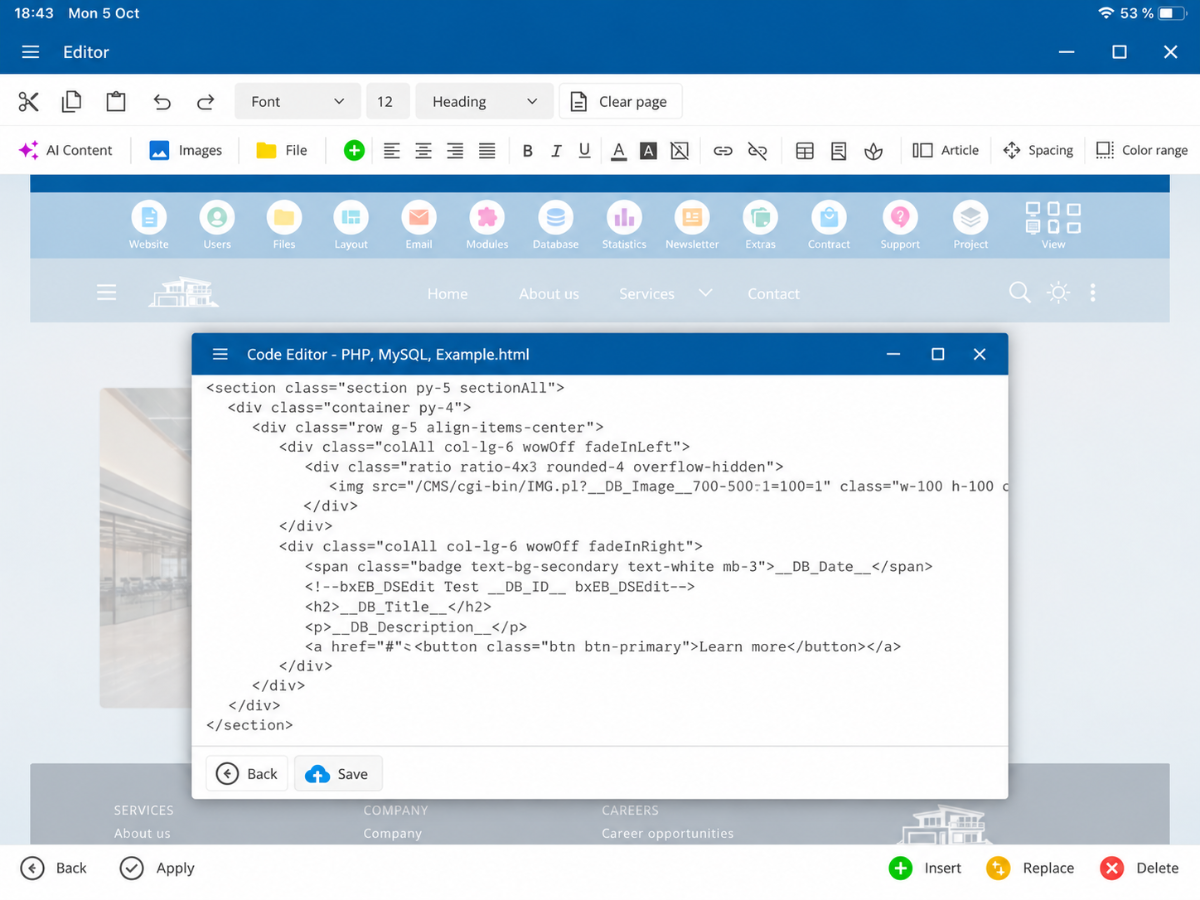
Now open the HTML Code of the same page. The following example shows the complete section of the page with image, date, title, and description. It is structured based on your screenshot as a readable HTML example. You can retain existing CSS classes and your image line on your own page.
<section class="section py-5 sectionAll">
   <div class="container py-4">
      <div class="row g-5 align-items-center">
         <div class="colAll col-lg-6 wowOff fadeInLeft">
            <div class="ratio ratio-4x3 rounded-4 overflow-hidden">
               <img src="/CMS/cgi-bin/IMG.pl?__DB_Image__=700=500=1=100=1" class="w-100 h-100 object-fit-cover" alt="">
            </div>
         </div>
         <div class="colAll col-lg-6 wowOff fadeInRight">
            <span class="badge text-bg-secondary text-white mb-3">__DB_Date__</span>
            <!--bxEB_DSedit Test __DB_ID__ bxEB_DSedit-->
            <h2>__DB_Title__</h2>
            <p>__DB_Description__</p>
            <a href="#" class="btn btn-primary">Mehr erfahren</a>
         </div>
      </div>
   </div>
</section>
The crucial new line is right behind the date: the edit button as an HTML comment. It contains the button type bxEB_DSedit, the table name Test, and the placeholder __DB_ID__. The bluetronix CMS processes this comment and displays the appropriate edit pencil in edit mode.
Copy the edit button line exactly including the comment characters. The table name and ID must match the PHP script. If your own table has a different name, replace Test in both the SELECT query and the edit button.
3. How PHP and HTML work together
When the page is accessed, PHP first reads the record from Test. The script then replaces the placeholders __DB_ID__, __DB_Date__, __DB_Title__, __DB_Description__, and __DB_Image__ in the HTML. From the edit button line with __DB_ID__, in our example, the association to the table Test and the record ID 1 is made.
This way, the page continues to display the image and texts from the database. Additionally, the Edit button knows which record to open. The end customer does not need to edit any PHP or HTML.
4. Result: Edit record directly on the website
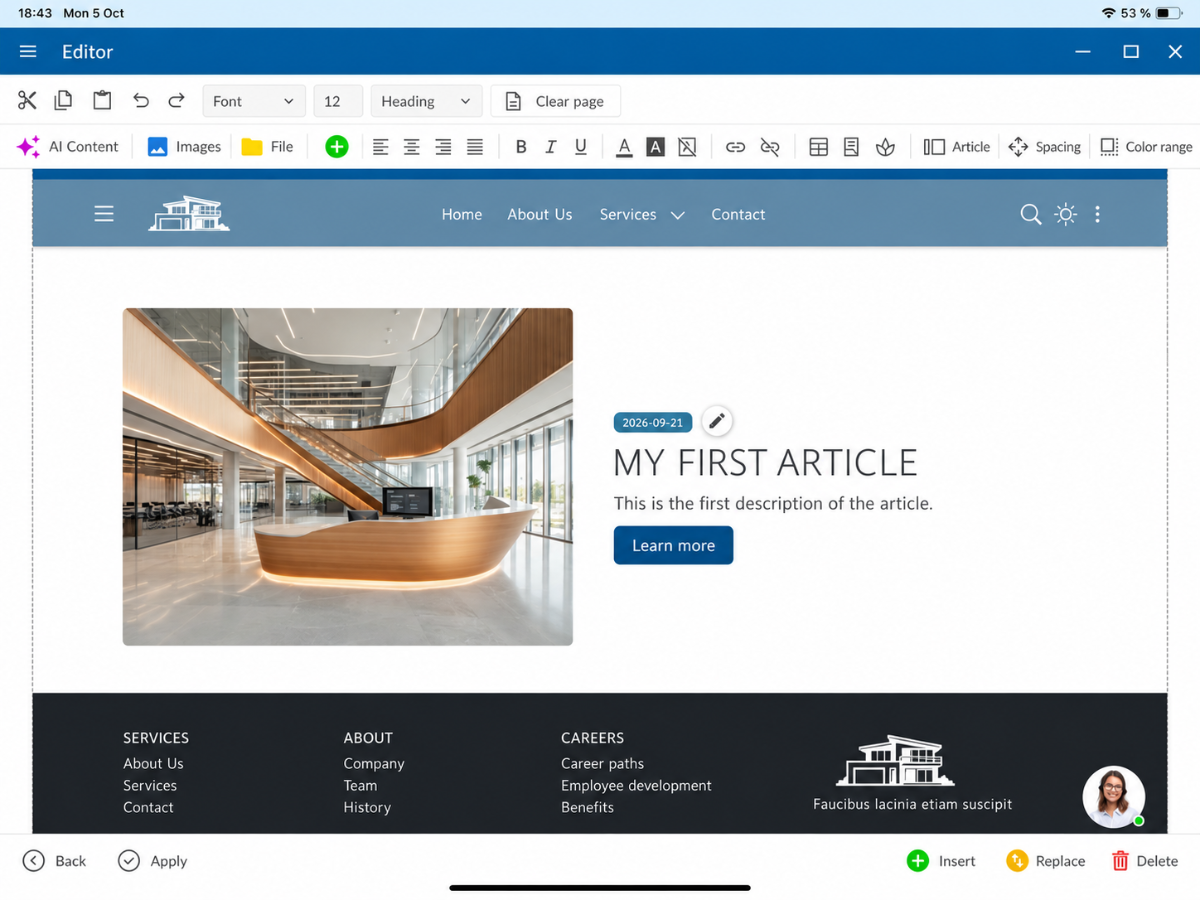
First, save the PHP and HTML code. Reload the example page in edit mode. Next to the date, the Edit pencil will now appear, as shown in the first screenshot.
Tap on the Edit pencil. The CMS will open the editing mask for Test – ID: 1. There you can change the date, title, description, and image. The existing BX-Image-Button is available for the image.
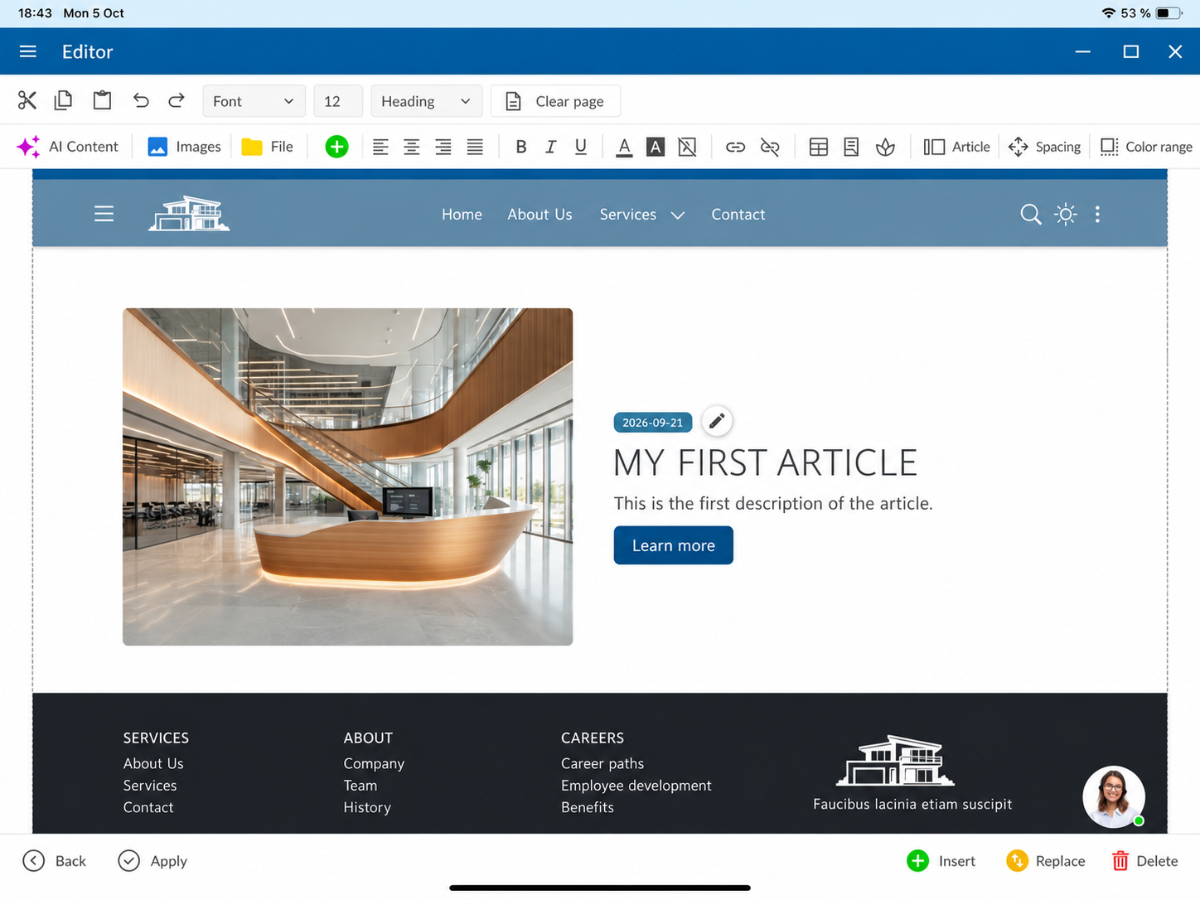
Tap on Save and reload the webpage. PHP reads the updated values from MySQL and inserts them into the same HTML placeholders. The layout remains unchanged; only the edited content will be updated.
Summary
To connect with an edit button, you extend your existing SELECT query by ID, pass this with $LayoutHTML to __DB_ID__, and insert the edit button marker in the HTML next to the desired content. After that, the corresponding record can be edited directly via the website.
FAQ
what customers often ask us
What prerequisites do I need for this tutorial?
You need a developer access and a CMS page that already loads a record from its own MySQL table using PHP.
What do I need to add to the PHP script?
The SELECT query must also load the ID column. You then replace the placeholder __DB_ID__ in $LayoutHTML with the loaded record ID.
What do I need to add to the HTML code?
Add the Edit button markup with the table name and the ID placeholder next to the desired content. For this example, the table name is Test.
Do I need to recreate my existing HTML sections?
No. You can keep your existing image, date, title, and description elements and just add the Edit button markup in the desired location.
Why must the automatic UPDATE example be disabled?
An automatically executed UPDATE with a fixed test value could overwrite the changes on the next page load.
What happens when I tap on the Edit pencil?
The CMS opens the record with the passed ID from the specified table. In the example, it's Test – ID: 1. There you can edit and save the intended fields.
When do the changed contents appear on the website?
After saving and reloading, PHP reads the updated data from MySQL and inserts it into the existing HTML layout.