

Adjust the HTML structure and layout of a page
Each newly created page initially uses the standard layout of the bluetronix CMS. In this tutorial, you will learn how this HTML structure is set up, how to define your own layouts, and how to assign them to individual pages.
The standard layout of a new page
A newly created page in the bluetronix CMS automatically uses the standard layout. This layout forms the HTML skeleton in which the content of your website is displayed.
The standard layout automatically includes a header and a footer, for instance. Other elements, such as the chatbot button, can also be part of this skeleton.
If you want to hide specific elements or integrate your own elements into the layout by default, you can customize the HTML skeleton.
Open the HTML structure
Open Layout ⯈ Layout-HTML.
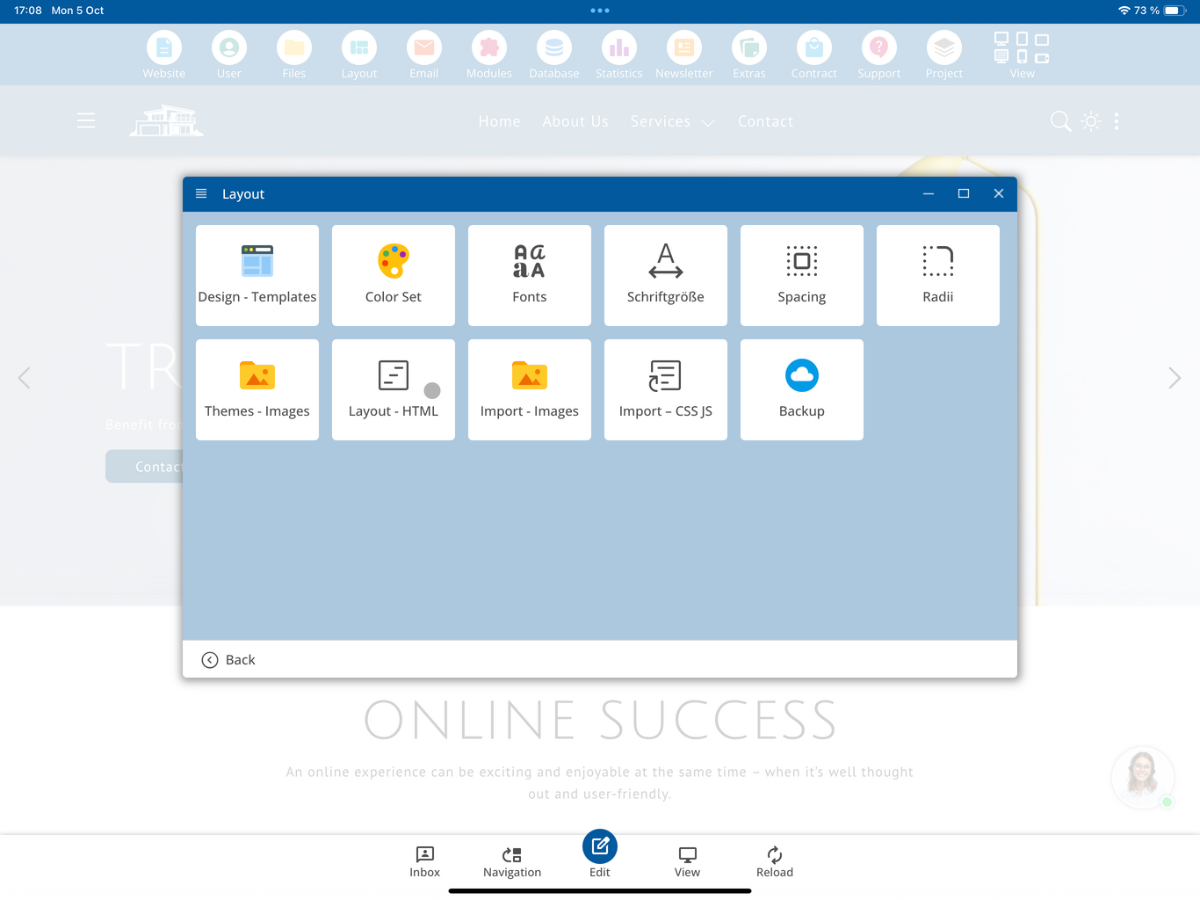
There you will find the existing HTML skeletons or layout definitions.
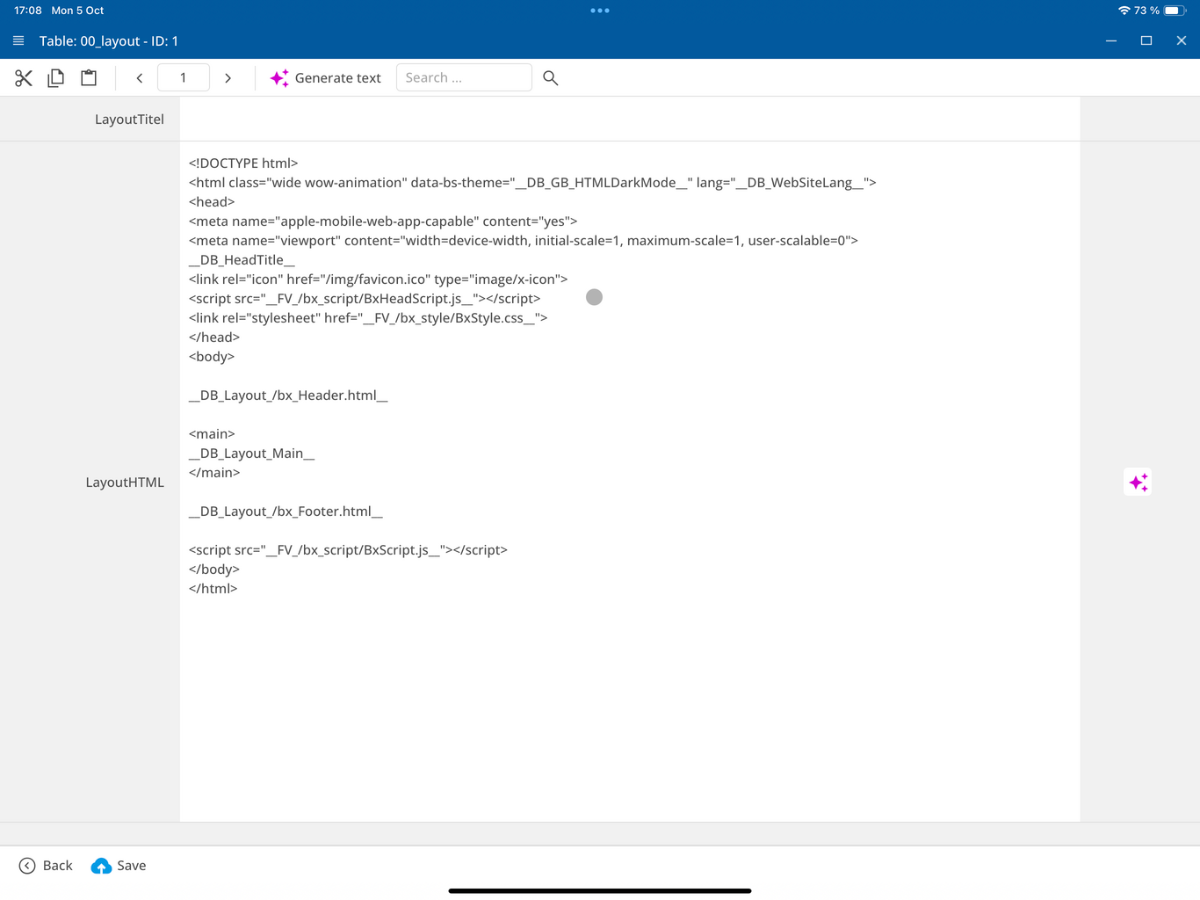
The first entry is the Standard Layout. This layout is used by default for new HTML pages.
Structure of the standard layout
<!DOCTYPE html>
<html class="wide wow-animation" data-bs-theme="__DB_GB_HTMLDarkMode__" lang="__DB_WebSiteLang__">
<head>
   <meta name="apple-mobile-web-app-capable" content="yes">
   <meta name="viewport" content="width=device-width, initial-scale=1, maximum-scale=1, user-scalable=0">
   __DB_HeadTitle__
   <link rel="icon" href="/img/favicon.ico" type="image/x-icon">
   <script src="__FV_/bx_script/BxHeadScript_own_min.js__"></script>
   <link rel="stylesheet" href="__FV_/bx_style/BxStyle_own_min.css__">
</head>
<body>

__DB_Layout_/bx_Header.html__

<main>
   __DB_Layout_Main__
</main>

__DB_Layout_/bx_Footer.html__

<script src="__FV_/bx_script/BxScript_own_min.js__"></script>
</body>
</html>
In the standard layout, headers and footers are automatically included, among other things.
The actual content of your HTML page is inserted within the main area or at the tag __DB_Layout_Main__.
Additionally, the bluetronix CMS automatically sets various values and tags. This includes, for example, the dark mode of Bootstrap, the language, and the title of the website.
Furthermore, the required bluetronix scripts are automatically executed.
The Single Page layout
In addition to the standard layout, the Single Page layout is also available.
This layout differs from the regular standard layout. For example, the chat button and the cookie notice can be hidden here.
This allows you to use a different skeleton for specific pages without having to change the standard layout of all other pages.
Create your own layout
You can also create your own layout entries and define your own HTML skeletons.
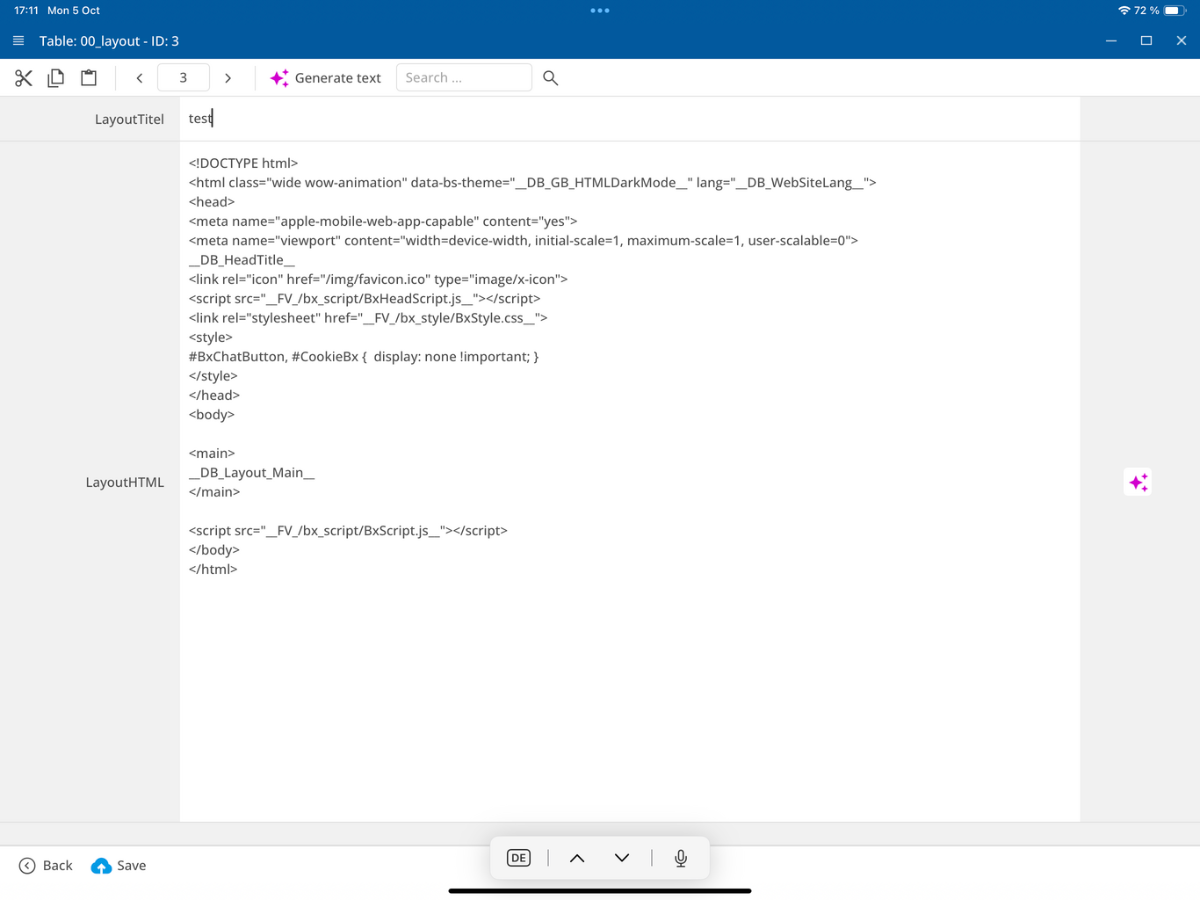
In this example, we will create our own layout entry called Test Layout.
Within this layout, you can specify which components should be included on a page by default.
Select a layout for a page
The defined layouts can later be directly assigned to an HTML page.
To do this, open the Editor and go to Page Settings.
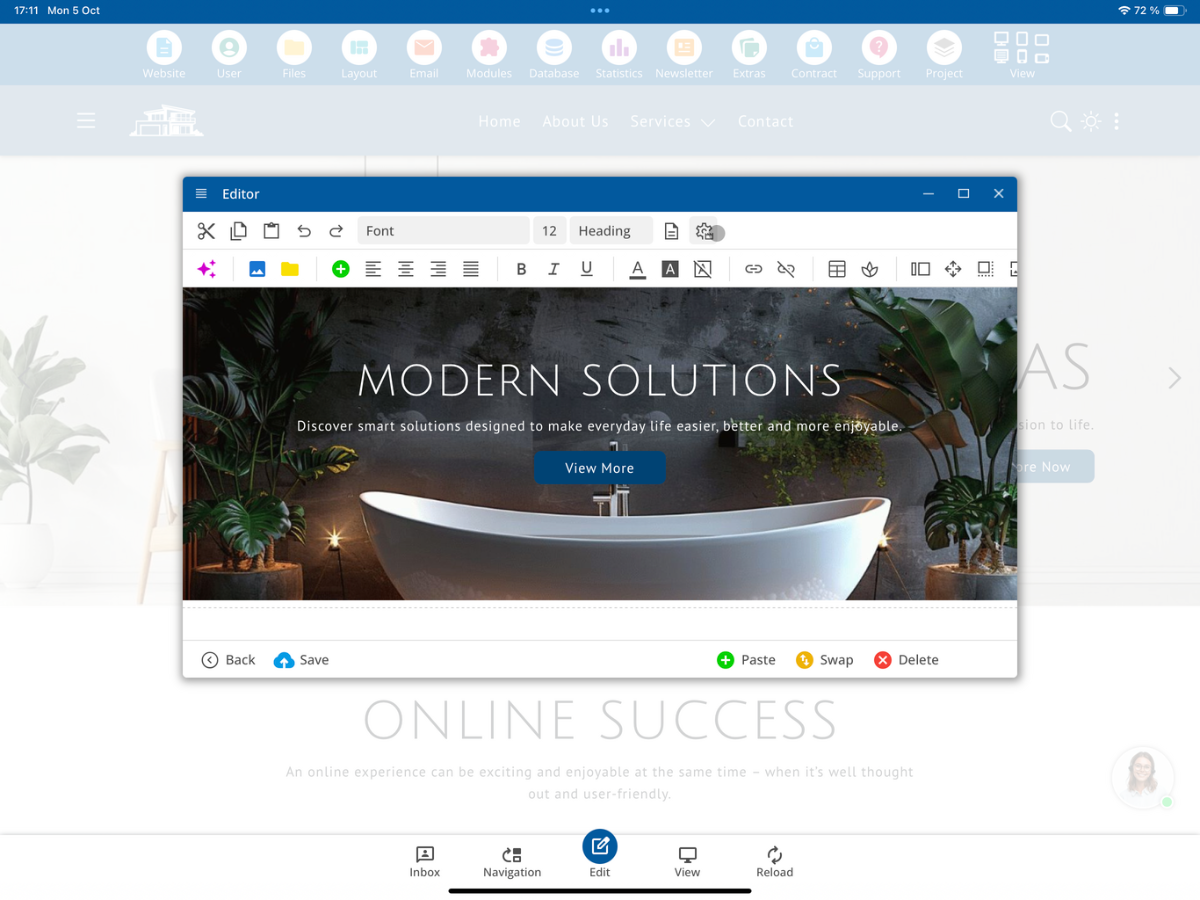
Tap on the layout selection. The existing layout definitions will be displayed there.
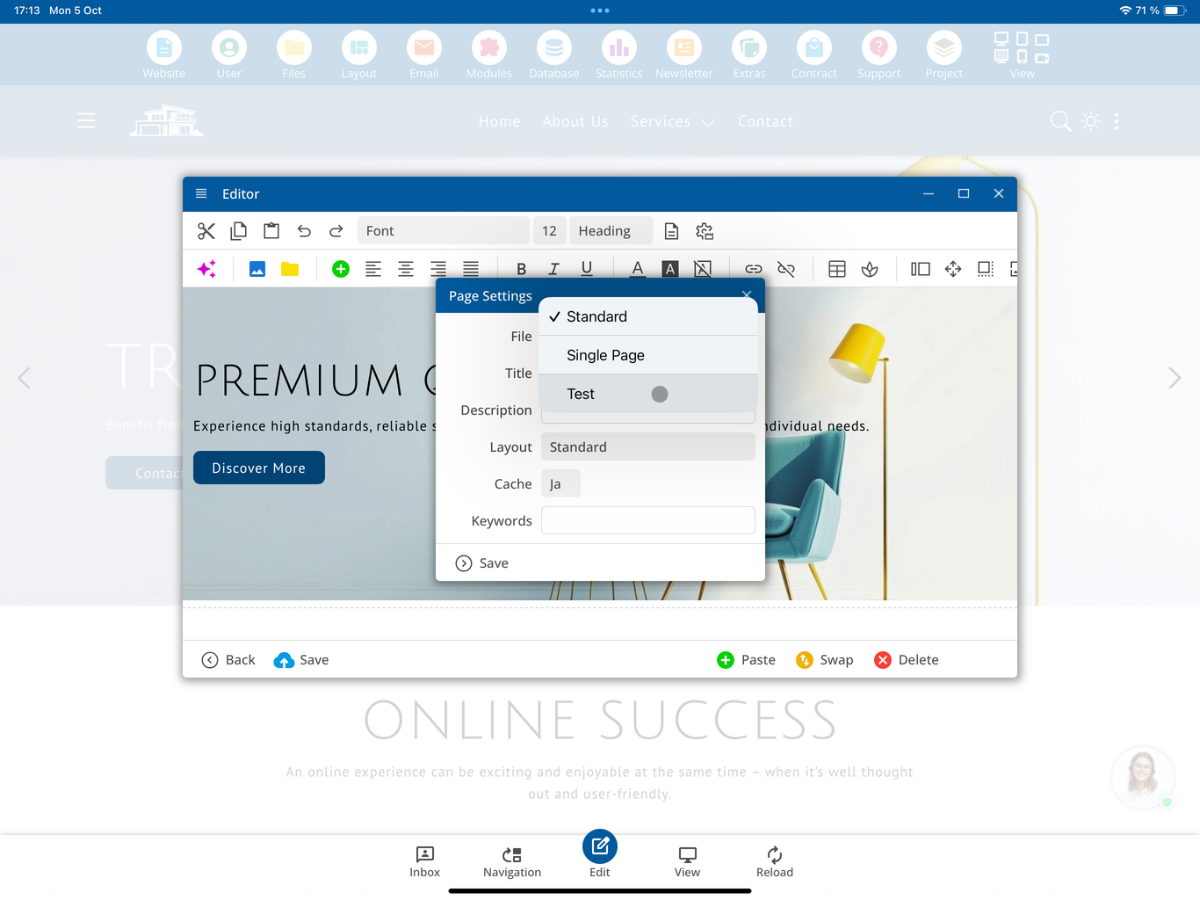
Custom-created layouts like Test Layout will also be available for selection.
Change the layout of a page
Select the desired layout and then tap on Save.
The page will then use the selected layout framework.
In this way, you can use different frameworks for different pages and specify which general elements are displayed on each page.
Summary
The layout determines the basic HTML structure of a page in the bluetronix CMS. New pages initially use the standard layout.
Through Layout ⯈ Layout-Html, you can view existing layouts and create your own layout definitions. Then you can select the desired layout via Page Settings ⯈ Layout and apply it with Save.
FAQ
what customers often ask us
Which layout does a newly created page use?
A newly created HTML page automatically uses the standard layout of the bluetronix CMS.
Where can I find the existing HTML layouts?
Open Layout ⯈ Layout-Html. There, you will find the existing layout definitions.
What is automatically included through the standard layout?
The standard layout can automatically include elements such as headers, footers, and other general elements like the chatbot button.
Where is the actual content of my HTML page inserted?
The content of the page is inserted within the main area, at the DB Layout Main marker in the layout.
What is the Single Page layout?
Single Page is an alternative layout definition. In this layout, elements like the chat button and cookie notice can be hidden.
Can I create my own layout?
Yes. You can create your own layout entry and define your own HTML structure within it.
How do I assign a different layout to a page?
Open the Editor, go to Page Settings, select the desired layout, and then tap Save.
Will self-created layouts also be displayed in the editor?
Yes. Your own layout definitions, such as the Test Layout created in the tutorial, will also appear in the layout selection.