

Set up email on iPhone – step-by-step guide
On this page, you will find an easy-to-understand guide on how to set up your bluetronix email account on the iPhone. You will receive all the necessary information (IMAP/POP3, SMTP, port numbers, SSL) and tips to ensure smooth sending and receiving.
Find email data
If you haven't set up an email address yet, first complete the step Create email address.
Open your bluetronix homepage in edit mode.
Go to Email ⯈ Email address management.
Click on Access data for the desired address.
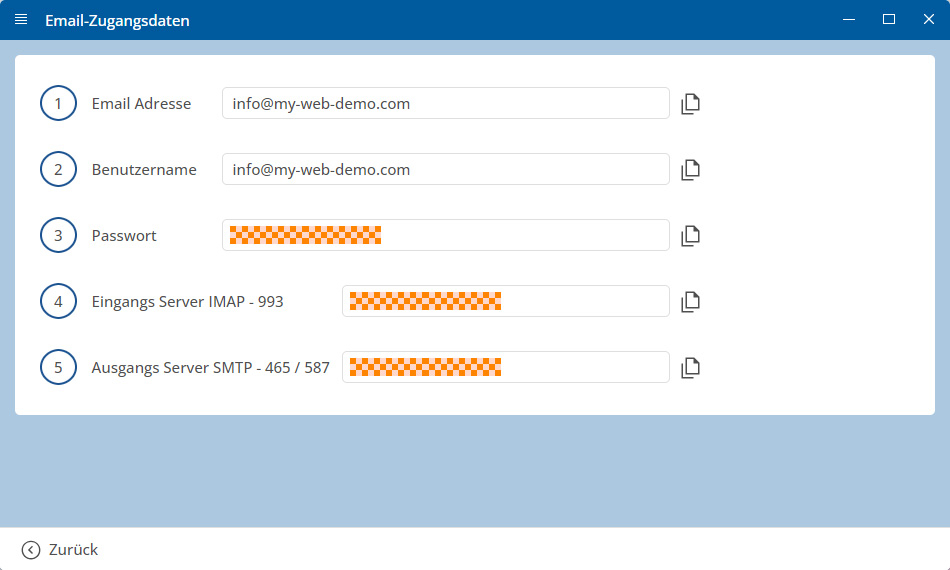
Important: Enter all data exactly as specified in the access data. Also pay attention to capitalization.
Set up iPhone Mail Account
Open the Settings app on your iPhone.
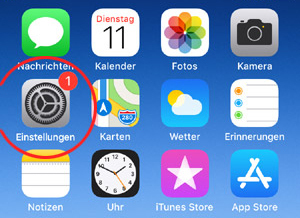
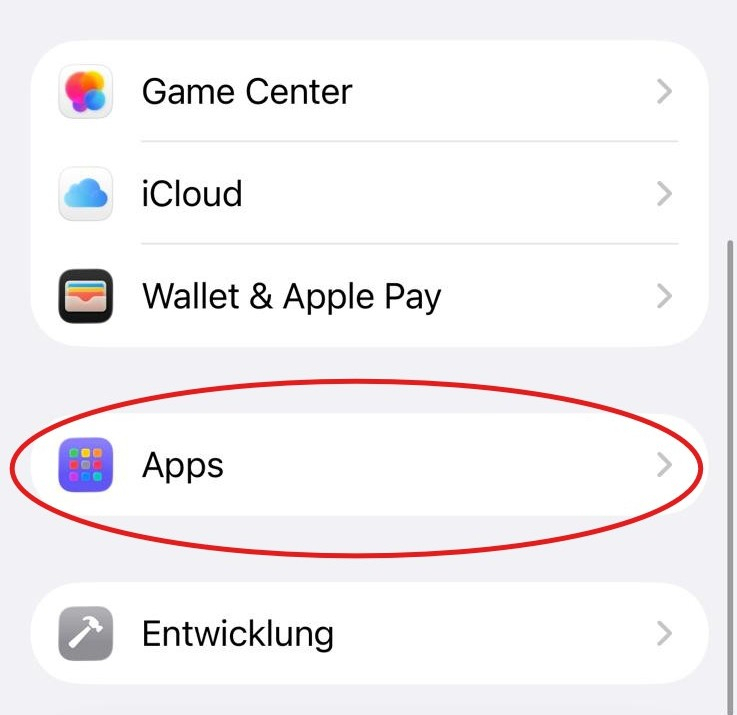
Scroll down and tap on Apps.
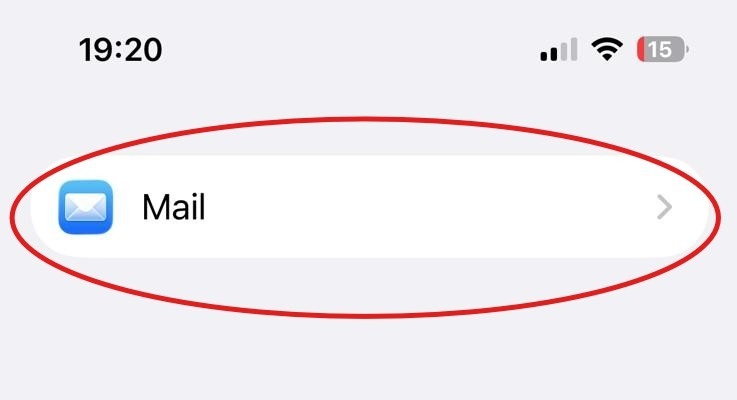
Tap on Mail.
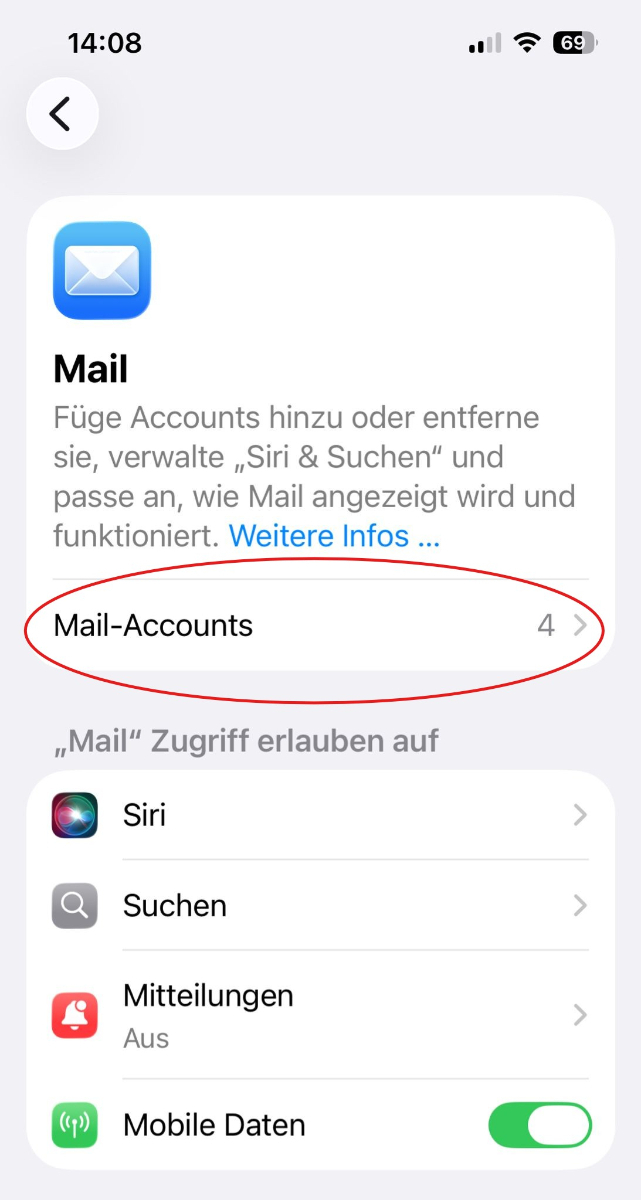
Tap on Mail Accounts.
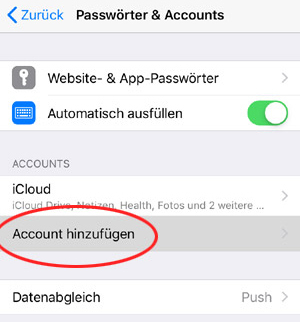
Tap on Add Account.
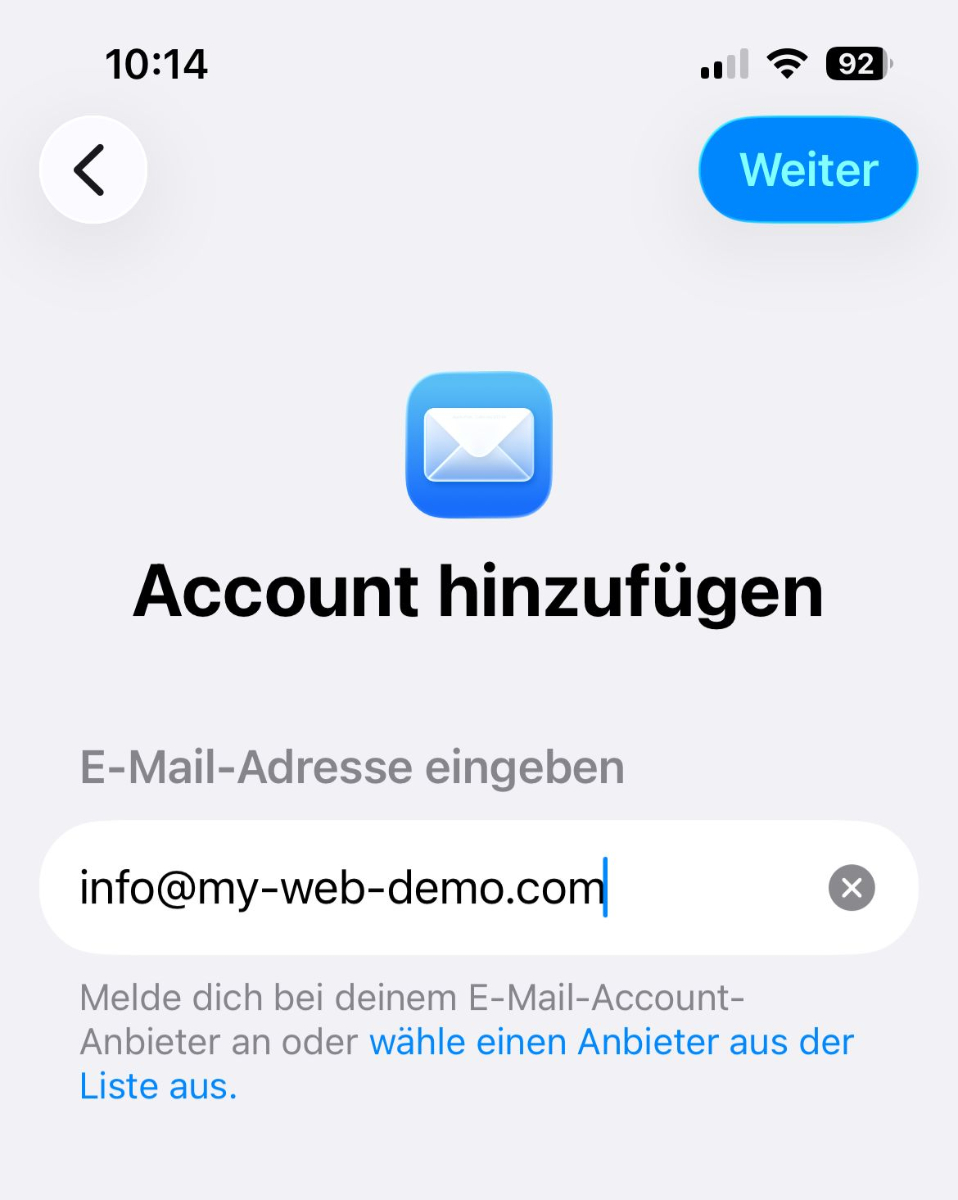
Enter your email address and tap Next in the top right.
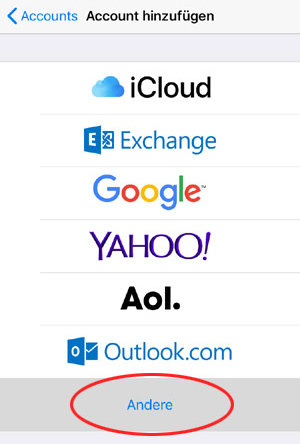
Tap on Other.
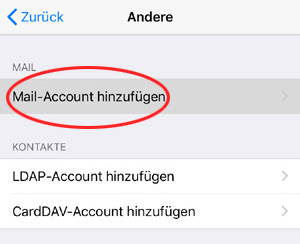
Tap on Add Mail Account.
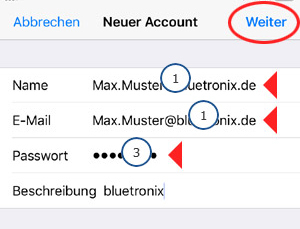
Fill in the fields with your credentials:
- Name: dein Name oder deine E-Mail-Adresse 1
- E-Mail: deine vollständige E-Mail-Adresse 1
- Passwort: dein E-Mail-Passwort 3
- Beschreibung: frei wählbar, zum Beispiel bluetronix
Then tap Next in the top right.
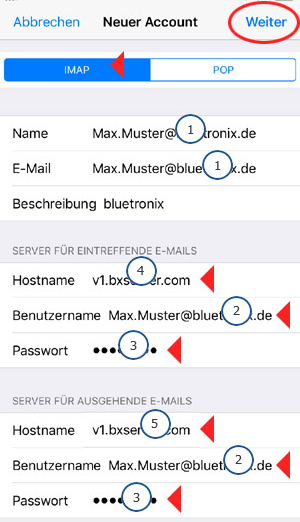
Select IMAP at the top. Then enter the server details.
Server for incoming emails
- Hostname: Hostname für eintreffende E-Mails 4
- Benutzername: Benutzername aus deinen Zugangsdaten 2
- Passwort: Passwort aus deinen Zugangsdaten 3
Server for outgoing emails
- Hostname: Hostname für ausgehende E-Mails 5
- Benutzername: Benutzername aus deinen Zugangsdaten 2
- Passwort: Passwort aus deinen Zugangsdaten 3
Then tap Next in the top right.
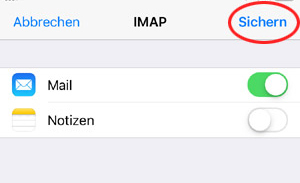
Keep Mail enabled. You can keep Notes disabled. Then tap Save in the top right.
Setup is complete!
Test the account by sending an email to your own email address. Then check if the email arrives.
If sending or receiving doesn't work, check the advanced settings as described below.
Check advanced IMAP settings
Open Settings ▶ Apps ▶ Mail ▶ Mail Accounts ▶ your email account ▶ Account ▶ Advanced.
Check the highlighted settings. Especially important is:
- SSL verwenden: aktiviert
- Authentifizierung: Passwort
- IMAP-Pfad-Präfix: /
- Server-Port: 993
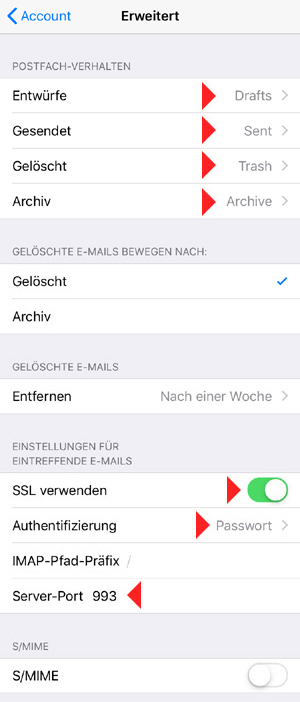
Then resend a test email to your own email address and check the reception.
FAQ
what customers often ask us
IMAP or POP3 – which one should I use?
It is recommended to use IMAP so that emails and folders stay in sync across all devices. POP3 only downloads emails locally and is only useful in special cases.
Where can I find my access data (server, ports, username, password)?
Open your bluetronix homepage in editing mode: Email ⯈ Email Address Management. Click on Access Data for the desired address. Pay attention to the exact case.
What ports and encryption do I need?
IMAP: Port 993 with SSL/TLS.
SMTP: Port 587 (or 465, depending on access data) with STARTTLS/SSL and active Authentication: Password.
How can I quickly test if everything works?
Send yourself an email. If it arrives in the Inbox and appears in the Sent folder, everything is set up correctly.
Troubleshooting – common causes
Check server names, ports, SSL/TLS, Authentication: Password, username (often the full email address), and password. If folders are missing, set the root folder path/IMAP server directory to INBOX and subscribe to IMAP folders.
How do I add a new account?
Settings ⯈ Passwords & Accounts (or Accounts) → Add Account → Other → Add Mail Account.
IMAP and server data
Select IMAP at the top. For Incoming and Outgoing Emails, enter Hostname, Username (usually the full email address), and Password → Next.
SSL and ports
Activate Use SSL (if specified in the account details). IMAP port is usually 993, SMTP port is usually 587. Authentication: Password.