

Publish menu items and pages – easily manage navigation and schedule online release
In this second part, you'll learn how to publish pages and menu items in the navigation editor, manage their visibility, switch between editing and public views, and schedule publications.
Publish menu items and pages
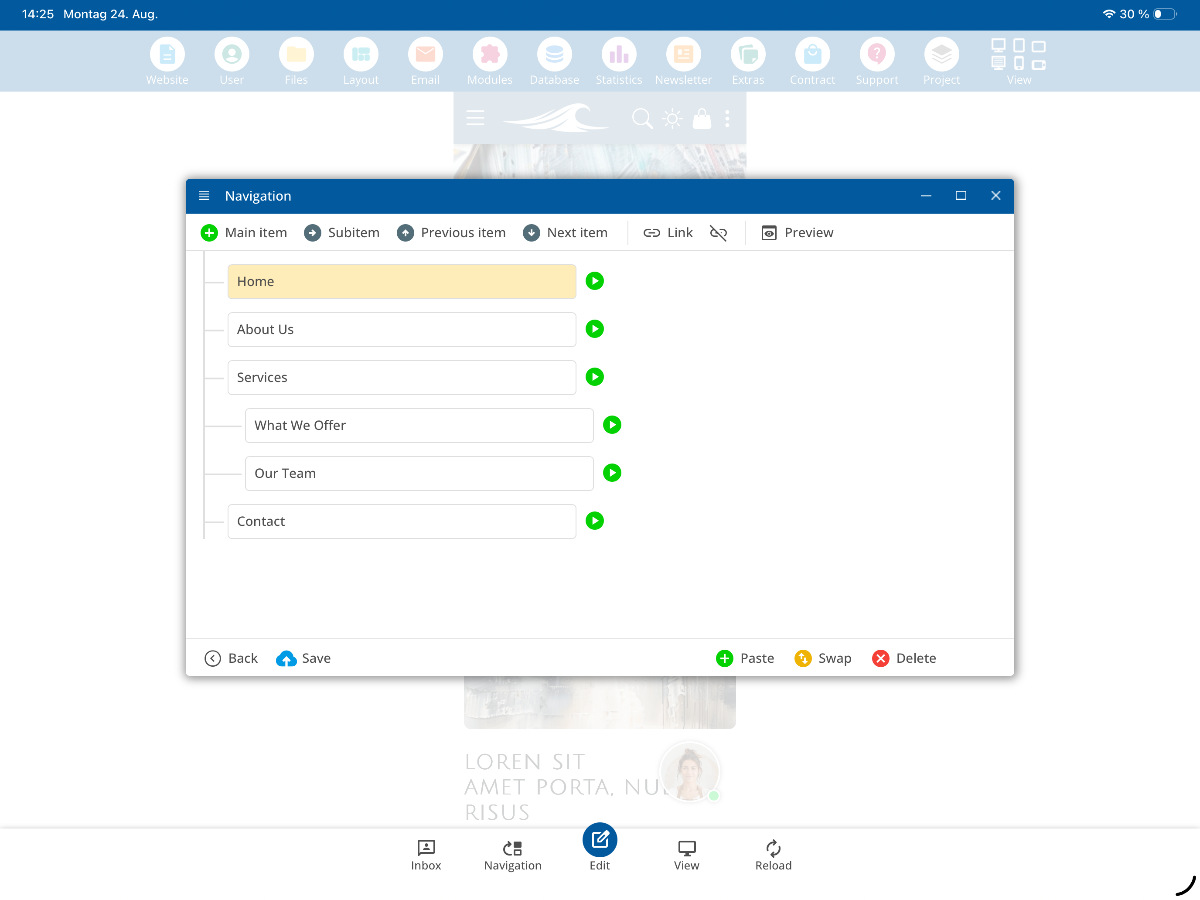
In this second part of the navigation editor, you will learn how to publish menu items and pages. To do this, open the navigation editor in the submenu. There you will see your current menu items, such as About Us.
Change publication status
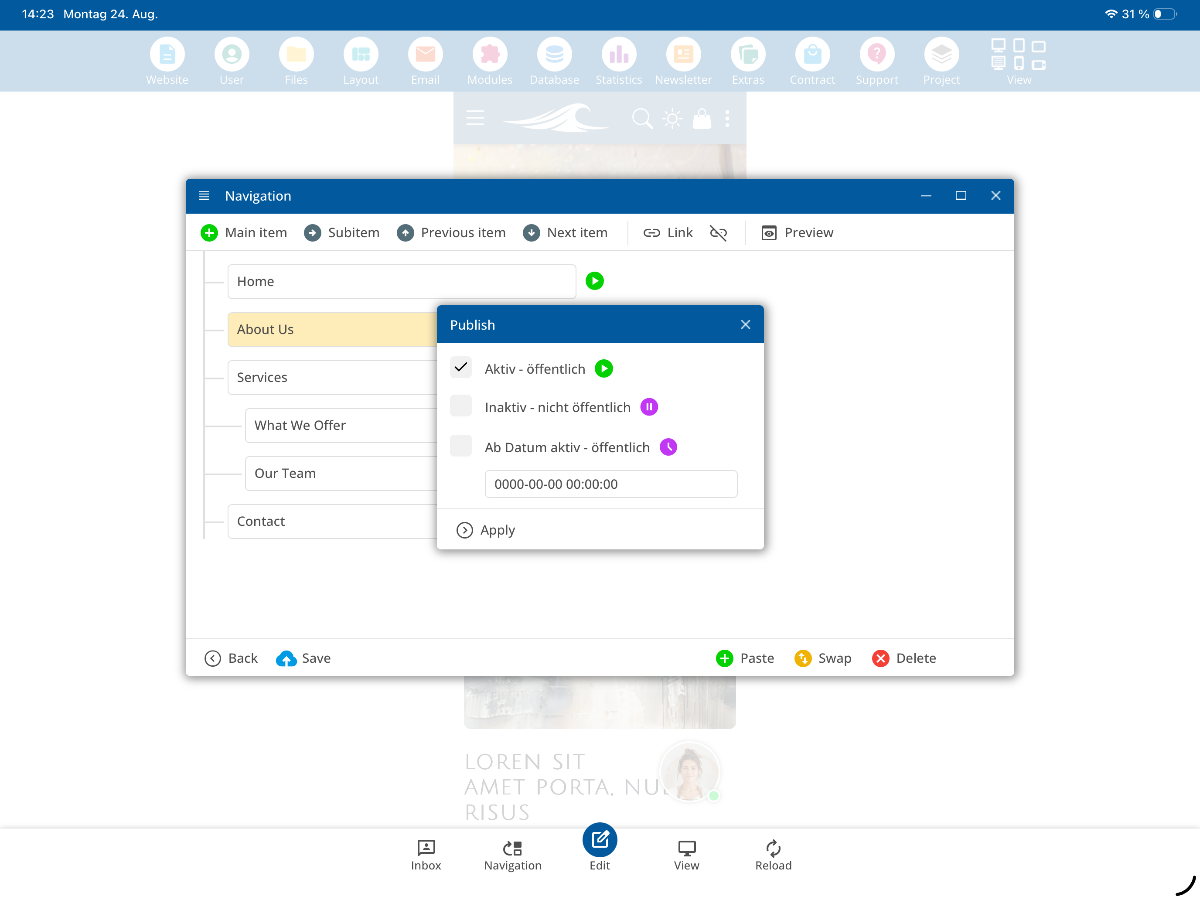
The green arrow indicates that the menu item is publicly visible. If you click on the arrow, you can specify that a certain page should not be published yet. Once you have made the change, save it.
Editing mode and visibility
Even if you set a page to "not public," it remains visible in edit mode. This allows you to further adjust it in the editor until it is fully completed and ready for publication.
Check public view
To see how your website looks to the public, click on the View option in the top menu and select the icon with the desktop monitor and stripes. This opens the public view.
Publish pages on a schedule
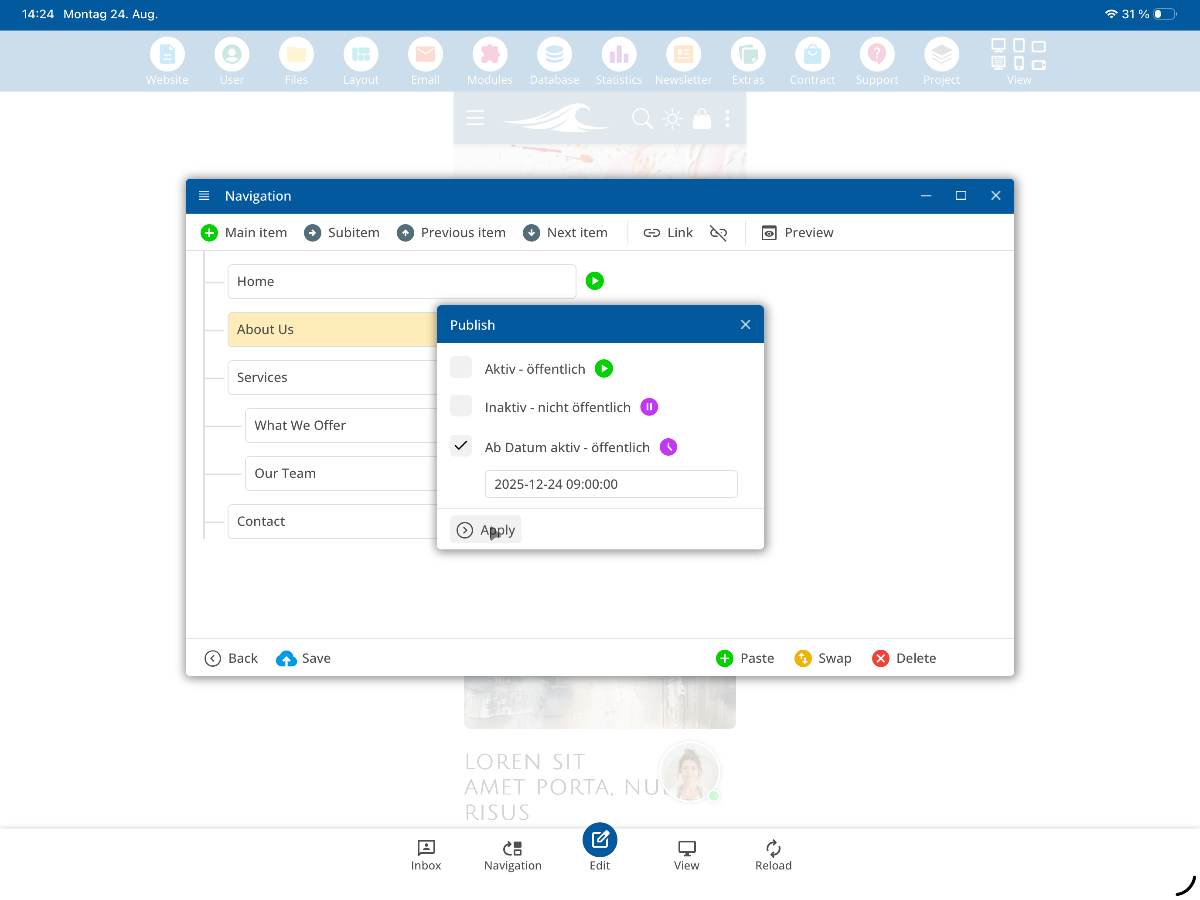
If you are using one of the server packages, you can also schedule pages to be published. This means you can set a specific time when a page goes live automatically – for example, on December 24th at 9 AM for a Christmas promotion. This allows prepared content to be activated automatically.
Tip: Plan your publications in advance to ensure time-sensitive content, such as promotions or campaigns, goes online on time.
FAQ
what customers often ask us
How can I publish menu items or pages?
Open the navigation editor in the submenu. There you will see your current menu items, such as About Us. A green arrow indicates that the menu item is publicly visible. Click on the arrow to set that a page should not be public yet. Then apply and save the change.
Why can I see the menu item in editing mode even though it is not published?
When you are in edit mode, you can see all menu items – including those that are not yet published. This allows you to continue editing them in the editor until they are completed and ready for publication.
How can I check the public view of my website?
Click on the icon with the desktop monitor and stripes under View in the top menu. This will open the public view of your website. There you can immediately see which menu items are already visible – for example, About Us will be hidden as long as it is not published.
How do I switch back to edit mode?
To go back to editing mode, simply click on the corresponding icon or use the navigation path Menu ⯈ Editing Mode. There the menu item will reappear, and you can continue editing it as usual.
How can I finally publish a page?
Within the navigation editor, you can publish any menu item or page as soon as it is fully completed. After saving, it will automatically be visible in the public view.
Can I publish pages on a schedule?
Yes, if you are using one of the Surfer Packages. With it, you can automatically activate pages at a specific date and time – for example, on December 24th at 9 AM for a Christmas campaign. This allows prepared content to go online automatically.