

Set up email address in Windows Live Mail
Here you will learn step by step how to set up your bluetronix email address in Windows Live Mail – and then everything is ready to go.
Find email data
If you haven't set up an email address yet, first complete the step "Create Email Address".
Open your bluetronix homepage in edit mode.
Go to Email ⯈ Email address management.
Click on Access data for the desired address.
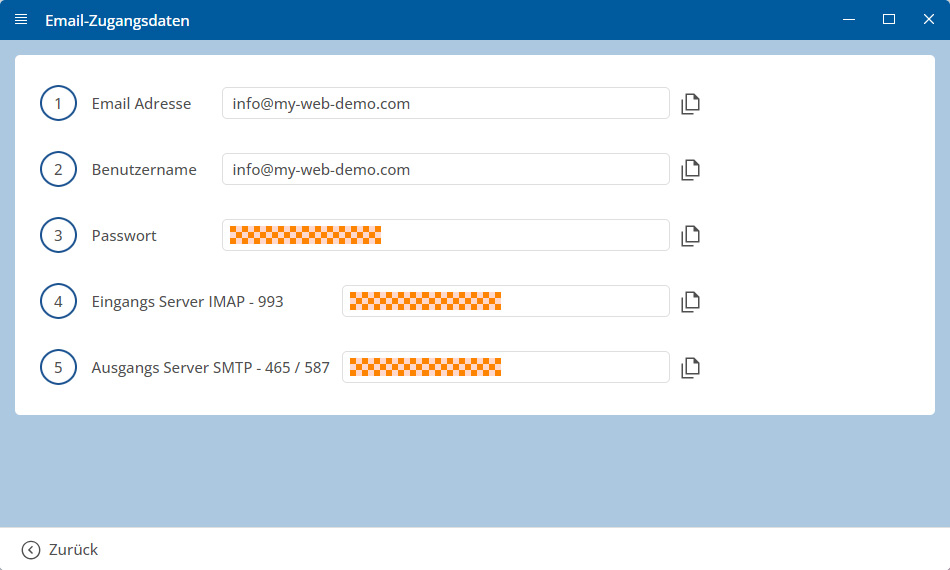
Important: Enter all data exactly as specified in the access data. Pay attention to capitalization.
Set up Windows Live Mail
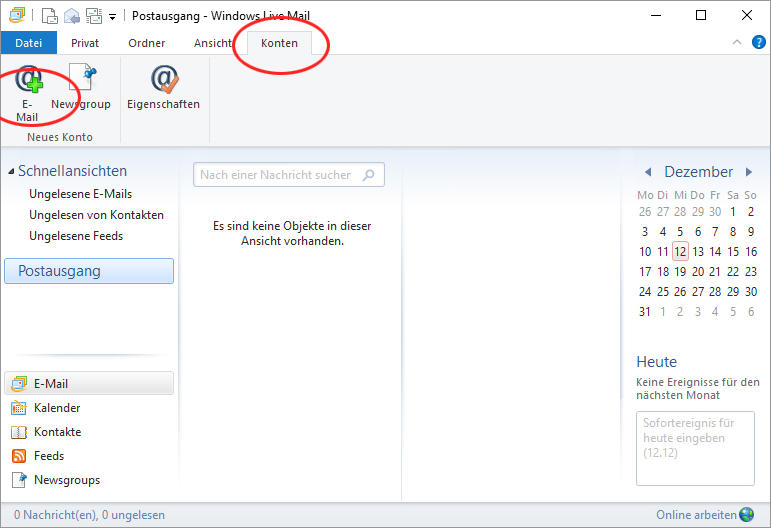
Start Windows Live Mail and click on Accounts at the top, then on Email.
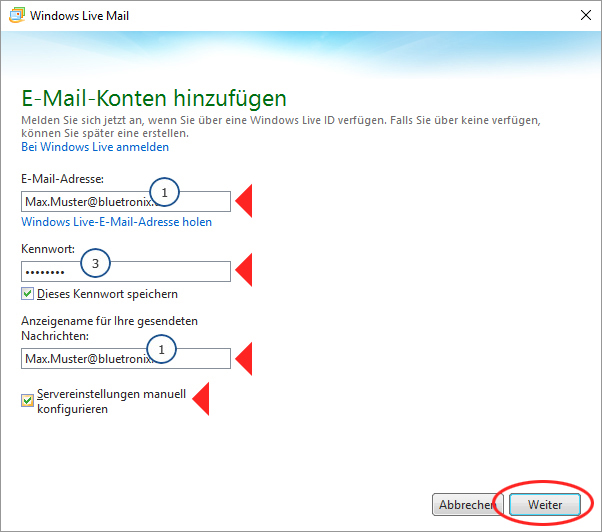
Now enter your data:
• Email address
• Password
• Display name
Activate Manually configure server settings and click on Next.
Enter the server data:
• Server address (incoming)
• Server address (outgoing)
• Login username
Then click on Next.
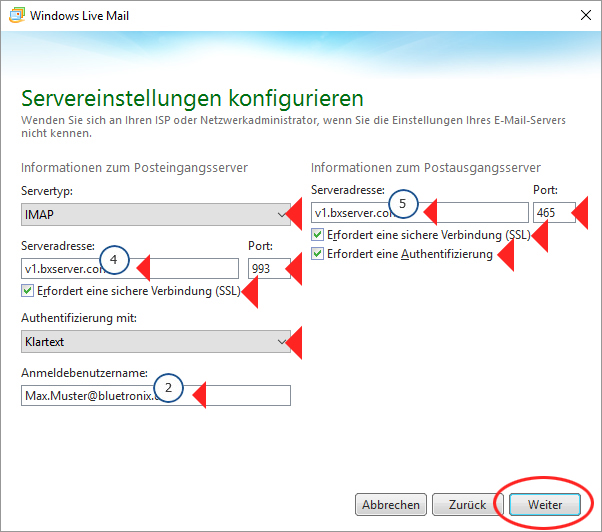
Pay special attention to the correct port fields!
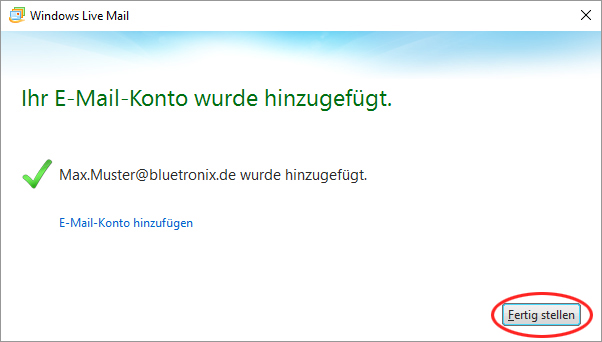
Complete the setup by clicking Finish.
Check IMAP folder settings
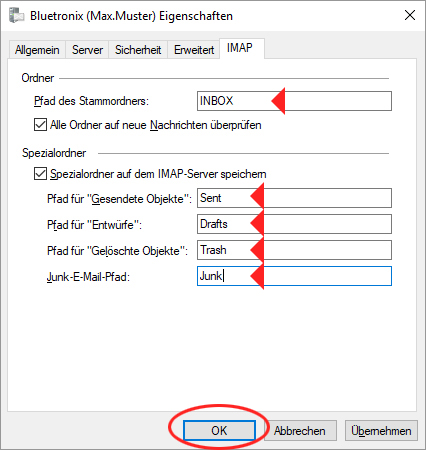
Open Accounts ⯈ Properties and switch to the IMAP tab.
Check the folder paths (INBOX, Sent, Drafts, Trash, Junk) and confirm with OK.
Setup completed
Test your settings: Send an email to your own address and check if the message arrives in the inbox.
FAQ
what customers often ask us
IMAP or POP3 – which one should I use?
It is recommended to use IMAP so that emails and folders stay in sync across all devices. POP3 only downloads emails locally and is only useful in special cases.
Where can I find my access data (server, ports, username, password)?
Open your bluetronix homepage in editing mode: Email ⯈ Email Address Management. Click on Access Data for the desired address. Pay attention to the exact case.
What ports and encryption do I need?
IMAP: Port 993 with SSL/TLS.
SMTP: Port 587 (or 465, depending on access data) with STARTTLS/SSL and active Authentication: Password.
How can I quickly test if everything works?
Send yourself an email. If it arrives in the Inbox and appears in the Sent folder, everything is set up correctly.
Troubleshooting – common causes
Check server names, ports, SSL/TLS, Authentication: Password, username (often the full email address), and password. If folders are missing, set the root folder path/IMAP server directory to INBOX and subscribe to IMAP folders.
How do I start the setup?
Select Accounts ⯈ Email to add a new account.
What basic data do I need to enter?
Enter Email address, Password, and Display name → Next.
Server data for incoming and outgoing
Enter Server address (incoming) IMAP/POP, Server address (outgoing) SMTP, and Login username (usually full email address). Set options exactly → Next.
Ports and security
Typical: IMAP 993 with SSL/TLS and SMTP 587 with STARTTLS/SSL (see access data).
Check IMAP folders
Accounts ⯈ Properties ⯈ IMAP: Adopt folder paths/options as recommended.
Complete the setup
Click Finish, the account will be added.